Docker Compose in Production: Reverse Proxy and Secrets
This article is part of the Production Docker series.
[ info ] // Meta
Category
DevOpsYears ago, whenever a small software startup reached five hundred daily active users, someone inevitably shouted during sprint planning that we needed Kubernetes. I fell into that trap twice in my early sysadmin career. I spent three exhausting weeks configuring etcd clusters, control planes, ingress controllers, certificate managers, and persistent volume claims on three modest virtual private servers. Two months later, the cluster broke during an unannounced kernel update, and the team spent forty-eight hours debugging why a simple internal Redis instance could not reach its persistent volume. The startup did not need a distributed hyperscale orchestrator. They needed two reliable virtual machines running a clean Docker daemon, automated backups, and a solid configuration file.
The industry often portrays Docker Compose as a toy reserved exclusively for local development environments on your laptop. That assumption is flatly wrong. The modern Compose Specification running under Docker Engine v25 and v26 is a robust, declarative, battle-tested production tool when deployed on single-node or multi-node standalone servers. If your infrastructure fits within one to five dedicated servers or cloud instances, Docker Compose offers lightning-fast deployments, predictable networking, zero cognitive overhead, and rock-solid stability.
However, moving Docker Compose from your local machine (docker compose up) to a publicly accessible production server requires strict operational discipline. You cannot simply bind port 8080 to the host interface, leave plaintext passwords in environment variables, and let container logs fill your root partition until the disk crashes.
In this concluding part of our Production Docker series, we examine the production blueprint for Docker Compose. We will configure an automated Traefik reverse proxy with automated TLS certificates, build self-healing healthchecks, eliminate deployment downtime, protect sensitive database credentials using Docker secrets, and enforce strict system resource caps.
The Production Gap: Laptop Compose vs Server Compose
When developers write a docker-compose.yml file for their local development machine, convenience takes priority over security and resilience. You expose ports directly to localhost, map entire project directories as live reload bind mounts, store passwords in a git-tracked .env file, and restart containers manually whenever an error occurs.
Running that exact same setup on a public production virtual machine will lead to disaster. The production environment introduces several hard constraints that local machines never experience:
+-------------------------------------------------------------------------+
|                  LOCAL DEV COMPOSE vs PRODUCTION COMPOSE                |
+-------------------------------------------------------------------------+
| Area              | Local Development         | Production Server       |
+-------------------+---------------------------+-------------------------+
| Ingress & TLS     | Plain HTTP (port 3000)    | Traefik / Nginx (HTTPS) |
| Port Exposure     | 0.0.0.0:8000 exposed      | Internal Docker network |
| Secrets           | Plaintext in .env file    | Docker secrets / files  |
| Deployments       | Container stop & replace  | Zero-downtime rolling   |
| Health Monitoring | Manual inspection         | Docker HEALTHCHECK poll |
| Storage           | Relative host bind mounts | Named volumes + backups |
| Log Retention     | Unlimited stdout stdout   | JSON-file rotation caps |
| Resource Limits   | Unlimited host RAM/CPU    | Hard cgroup caps        |
+-------------------------------------------------------------------------+
If you expose your backend database container directly to the public network by specifying ports: - "5432:5432" in your Compose file, automated bot scanners will hit your PostgreSQL port within minutes. If you allow containers to output unbounded logs to standard output without configuring Docker log drivers, your Linux server will run out of disk space, triggering the Linux kernel out-of-memory killer or freezing the filesystem.
To build a reliable production environment, we must treat Docker Compose as a structured service orchestrator. Before diving into multi-container setups, ensure you understand the core container lifecycle covered in our guide on learning Docker from scratch.
Production Architecture: Ingress and Service Discovery
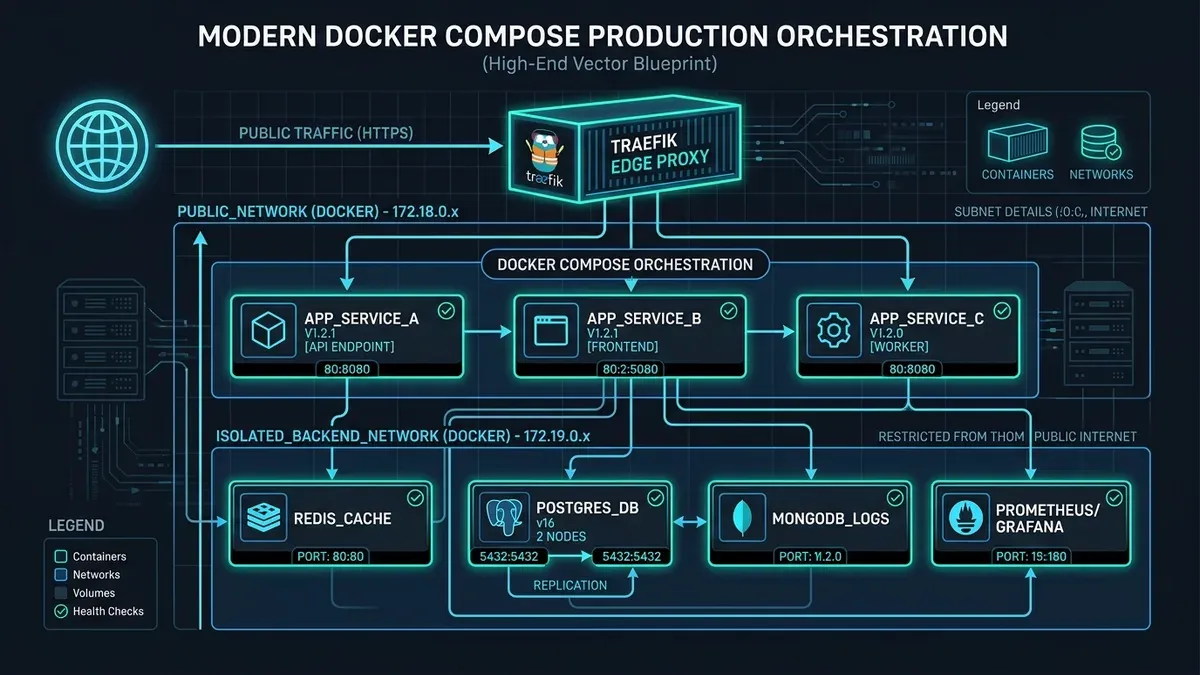
In a production setup, no application container should ever bind its internal HTTP ports directly to the public host IP address. Instead, all incoming web traffic enters through a dedicated edge reverse proxy container that listens on ports 80 and 443.
The reverse proxy handles three critical responsibilities:
- Terminating SSL and TLS connections automatically using Let’s Encrypt certificates.
- Routing incoming domain requests (such as
api.example.comordashboard.example.com) to the correct internal Docker container. - Buffering requests, enforcing HTTP headers, and dropping malformed traffic before it reaches your backend application.
While Nginx is a classic and reliable reverse proxy, Traefik is built specifically for containerized infrastructure. Traefik connects directly to the Docker socket, listens for container lifecycle events, and automatically generates routing rules whenever a container starts or stops. You never have to manually edit Nginx configuration files or reload proxy daemons when deploying new services.
Let us inspect the production architecture flow:
Here is a hardened docker-compose.traefik.yml file that establishes the central ingress gateway for your server:
services:
  traefik:
    image: traefik:v3.1
    container_name: production_traefik
    restart: unless-stopped
    security_opt:
      - no-new-privileges:true
    ports:
      - "80:80"
      - "443:443"
    environment:
      - CF_DNS_API_TOKEN_FILE=/run/secrets/cf_dns_api_token
    secrets:
      - cf_dns_api_token
    volumes:
      - /var/run/docker.sock:/var/run/docker.sock:ro
      - ./traefik-data/acme.json:/acme.json
      - ./traefik-data/traefik.yml:/etc/traefik/traefik.yml:ro
    networks:
      - web_gateway
    logging:
      driver: "json-file"
      options:
        max-size: "20m"
        max-file: "5"

secrets:
  cf_dns_api_token:
    file: ./secrets/cf_dns_api_token.txt

networks:
  web_gateway:
    name: web_gateway
    driver: bridge
Notice the critical security safeguards embedded in this proxy definition:
no-new-privileges:true: Prevents processes inside the container from gaining additional privileges through setuid binaries.docker.sock:ro: The Docker socket is mounted in read-only mode so Traefik can discover running containers without having write access to create or delete containers on the host.networks: web_gateway: An external bridge network is created. Only containers that need public web exposure join this network. Databases and internal message queues never connect toweb_gateway.
Writing Production Application Services
Now that the edge proxy is established, our application containers can declare their routing rules dynamically using Docker labels.
Consider a production stack with a Node.js API backend and a PostgreSQL database. The backend must be reachable through HTTPS at api.dowithsudo.com, while PostgreSQL must remain strictly isolated on an internal private network.
Here is the production docker-compose.yml for this workload:
services:
  api:
    image: registry.example.com/company/api:v1.4.2
    restart: unless-stopped
    depends_on:
      postgres:
        condition: service_healthy
    networks:
      - web_gateway
      - internal_backend
    environment:
      NODE_ENV: production
      PORT: 3000
      DB_HOST: postgres
      DB_PORT: 5432
      DB_NAME: app_production
      DB_USER_FILE: /run/secrets/db_user
      DB_PASSWORD_FILE: /run/secrets/db_password
    secrets:
      - db_user
      - db_password
    labels:
      - "traefik.enable=true"
      - "traefik.http.routers.api.rule=Host(`api.dowithsudo.com`)"
      - "traefik.http.routers.api.entrypoints=websecure"
      - "traefik.http.routers.api.tls.certresolver=letsencrypt"
      - "traefik.http.services.api.loadbalancer.server.port=3000"
    healthcheck:
      test: ["CMD-SHELL", "wget -qO- http://127.0.0.1:3000/health || exit 1"]
      interval: 15s
      timeout: 5s
      retries: 3
      start_period: 20s
    deploy:
      resources:
        limits:
          cpus: '1.5'
          memory: 1024M
        reservations:
          cpus: '0.25'
          memory: 256M
    logging:
      driver: "json-file"
      options:
        max-size: "50m"
        max-file: "3"

  postgres:
    image: postgres:16-alpine
    restart: unless-stopped
    networks:
      - internal_backend
    environment:
      POSTGRES_DB: app_production
      POSTGRES_USER_FILE: /run/secrets/db_user
      POSTGRES_PASSWORD_FILE: /run/secrets/db_password
    secrets:
      - db_user
      - db_password
    volumes:
      - postgres_data:/var/lib/postgresql/data
    healthcheck:
      test: ["CMD-SHELL", "pg_isready -U $(cat /run/secrets/db_user) -d app_production"]
      interval: 10s
      timeout: 5s
      retries: 5
      start_period: 10s
    deploy:
      resources:
        limits:
          cpus: '2.0'
          memory: 2048M
    logging:
      driver: "json-file"
      options:
        max-size: "50m"
        max-file: "5"

secrets:
  db_user:
    file: ./secrets/db_user.txt
  db_password:
    file: ./secrets/db_password.txt

volumes:
  postgres_data:
    name: production_postgres_data

networks:
  web_gateway:
    external: true
  internal_backend:
    driver: bridge
    internal: true
Pay special attention to internal_backend: internal: true. This Docker networking flag instructs the Linux kernel bridge to reject any outgoing or incoming packets that attempt to traverse the host gateway. Even if an attacker manages to compromise a dependency inside your application container, the PostgreSQL container cannot initiate outbound connections to external command-and-control servers.
To strengthen the underlying host operating system alongside your Docker configuration, review our battle-tested Linux server hardening best practices.
Automated Healthchecks and Self-Healing
One of the most dangerous anti-patterns in production container deployments is relying solely on container exit status. A container can remain in the running state according to Docker daemon while its internal application process is completely locked up in a database connection deadlock or an infinite loop.
When this happens without a healthcheck:
- Docker assumes the container is operating normally.
- The reverse proxy continues routing incoming user requests to the dead container.
- Every single user receives HTTP 502 Bad Gateway errors.
- The system never recovers until an engineer wakes up at three in the morning and manually restarts the service.
The Compose healthcheck directive solves this vulnerability completely. Docker executes the defined test command inside the container at regular intervals.
healthcheck:
  test: ["CMD-SHELL", "curl -f http://localhost:3000/health || exit 1"]
  interval: 15s
  timeout: 5s
  retries: 3
  start_period: 30s
Let us break down each configuration parameter:
test: The shell command executed inside the container. It must return exit code0on success, or non-zero on failure. Keep the test lightweight. Do not perform expensive SQL queries inside your healthcheck endpoint.interval: How frequently Docker runs the health check. Fifteen seconds is a solid balance between rapid failure detection and low CPU overhead.timeout: How long Docker waits for the probe command to finish before marking that specific attempt as failed.retries: The consecutive number of failures required before the container status transitions fromhealthytounhealthy. Setting this to3prevents temporary network blips from triggering unnecessary container restarts.start_period: The initialization grace window. Many applications take twenty to forty seconds to warm up caches, connect to database pools, and compile runtime assets. Any failures duringstart_perioddo not count against the retry limit.
Furthermore, Traefik natively inspects Docker container health status. If a container transitions to unhealthy, Traefik automatically removes it from the routing table within milliseconds. Requests are instantly diverted to healthy replicas instead of returning errors to end users.
For deeper insights on diagnosing abnormal container deaths and kernel kills, consult our guide on Docker OOMKilled troubleshooting.
Zero-Downtime Deployments with Docker Compose
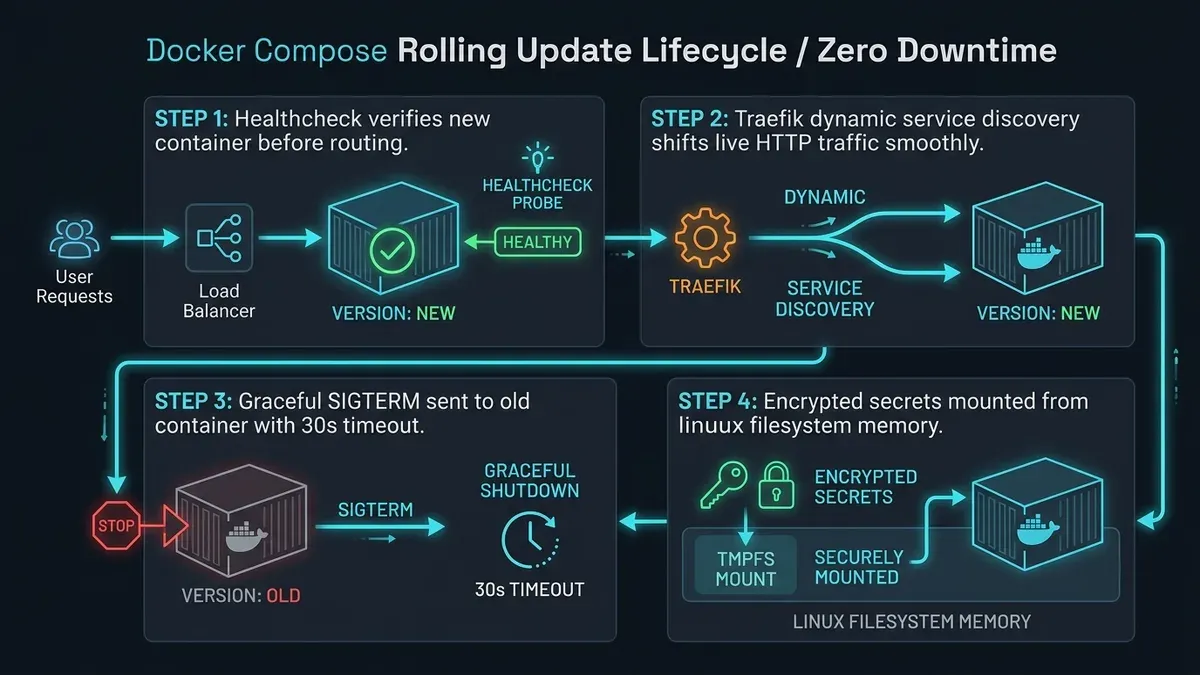
By default, when you run docker compose up -d, Docker Compose stops the old container first, tears down its networking bridge, creates the new container, and starts it. Depending on the size of your application image and startup sequence, this teardown-then-start flow creates five to thirty seconds of unavoidable downtime during every single release.
In production environments, we want the exact opposite sequence:
- Pull the new image version.
- Spin up the new container alongside the old container.
- Wait until the new container passes all healthchecks and transitions to
healthy. - Instruct the reverse proxy to direct traffic to the new container.
- Send a graceful termination signal (
SIGTERM) to the old container and shut it down.
You can achieve this zero-downtime workflow directly in standard Docker Compose by utilizing scaled instances and Traefik service discovery.
Here is the step-by-step production deployment script:
#!/usr/bin/env bash
set -euo pipefail

SERVICE_NAME="api"
NEW_IMAGE_TAG="$1"

echo "=== [1/5] Pulling new container image: ${NEW_IMAGE_TAG} ==="
docker pull "registry.example.com/company/api:${NEW_IMAGE_TAG}"

echo "=== [2/5] Scaling service up to 2 instances ==="
# Export tag so Compose picks up the new image version
export APP_IMAGE_TAG="${NEW_IMAGE_TAG}"
docker compose up -d --no-deps --scale "${SERVICE_NAME}=2" --no-recreate "${SERVICE_NAME}"

echo "=== [3/5] Waiting for new replica to achieve healthy status ==="
NEW_CONTAINER_ID=$(docker compose ps -q "${SERVICE_NAME}" | head -n 1)

for i in {1..30}; do
  STATUS=$(docker inspect --format='{{json .State.Health.Status}}' "${NEW_CONTAINER_ID}" | tr -d '"')
  echo "Current container health status: ${STATUS} (attempt ${i}/30)"

  if [ "${STATUS}" == "healthy" ]; then
    echo "New container is healthy! Traefik is now routing traffic."
    break
  fi

  if [ "${i}" -eq 30 ]; then
    echo "ERROR: New container failed healthchecks within timeout. Aborting deployment."
    docker stop "${NEW_CONTAINER_ID}"
    docker rm "${NEW_CONTAINER_ID}"
    exit 1
  fi
  sleep 2
done

echo "=== [4/5] Gracefully stopping the old container replica ==="
OLD_CONTAINER_ID=$(docker compose ps -q "${SERVICE_NAME}" | tail -n 1)
docker stop -t 30 "${OLD_CONTAINER_ID}"
docker rm "${OLD_CONTAINER_ID}"

echo "=== [5/5] Re-normalizing scale to 1 instance ==="
docker compose up -d --no-deps --scale "${SERVICE_NAME}=1" "${SERVICE_NAME}"

echo "=== Deployment completed successfully with zero downtime! ==="
Let us examine why this script guarantees uninterrupted traffic:
- When
docker compose up --scale api=2runs, a second container is launched. - Because both containers share the same Traefik service label, Traefik automatically adds the new instance into its internal round-robin pool the exact second it reports
healthy. - The command
docker stop -t 30allows the old container up to thirty seconds to finish in-flight HTTP requests and close open database transactions cleanly before receiving a forcedSIGKILL.
For teams looking at larger infrastructure comparisons and evaluating when single-node setups reach their limits, see our comprehensive analysis on Docker vs Kubernetes.
Production Secrets: Escaping the Plaintext Environment Trap
Most production outages and security breaches on self-hosted Docker servers do not originate from sophisticated zero-day exploits. They happen because an engineer committed database credentials into a git repository or stored production passwords directly in the environment: block of a docker-compose.yml file.
Storing plaintext secrets in environment variables suffers from three critical vulnerabilities:
- Inspection Leaks: Anyone with read access to the Docker daemon can inspect container metadata via
docker inspect <container_id>and view every secret in plain text. - Error Logging: Modern application runtime crash reporters (such as Sentry or local error logs) frequently dump the entire process environment table upon unhandled exceptions. Your database password ends up logged into monitoring systems.
- Child Process Inheritance: Any third-party script, utility, or shell spawned inside the container automatically inherits all environment variables from parent processes.
The modern Docker Compose Specification provides native support for secrets. When you define a secret from a host file, Docker mounts that secret into the container filesystem at /run/secrets/<secret_name> using an internal in-memory tmpfs mount.
Here is how to structure your secret files on the host server:
# 1. Create a dedicated secrets directory with restricted root permissions
mkdir -p ./secrets
chmod 700 ./secrets

# 2. Populate secrets into individual files without trailing newlines
echo -n "super_secure_production_db_password_9821" > ./secrets/db_password.txt
echo -n "postgres_app_user" > ./secrets/db_user.txt

# 3. Lock down file permissions to read-only for the owner
chmod 400 ./secrets/*.txt
Inside your application code, read the credential directly from /run/secrets/db_password on startup instead of reading process.env.DB_PASSWORD.
Here is an example implementation pattern in Node.js:
import fs from 'fs';

function getSecret(secretPath, fallbackEnvVar) {
  try {
    if (fs.existsSync(secretPath)) {
      return fs.readFileSync(secretPath, 'utf8').trim();
    }
  } catch (err) {
    console.warn(`Could not read secret file at ${secretPath}:`, err.message);
  }
  return process.env[fallbackEnvVar] || '';
}

const dbPassword = getSecret('/run/secrets/db_password', 'DB_PASSWORD');
const dbUser = getSecret('/run/secrets/db_user', 'DB_USER');
This hybrid approach allows your developers to use standard environment variables during local testing, while production environments automatically take advantage of in-memory /run/secrets/ mounts with zero exposure to docker inspect.
Resource Governance and Log Rotation Hygiene
If you deploy Docker Compose on a production Linux server without resource constraints and logging limits, your server operates on borrowed time.
1. Hard Memory and CPU Caps
By default, a Docker container can consume all available RAM and CPU cycles on the host machine. If an unexpected traffic surge causes a memory leak in your API container, the Linux kernel Out-Of-Memory (OOM) killer will intervene to save the operating system.
When the OOM killer activates, it calculates a heuristic score (oom_score) across all running processes and terminates the process consuming the most memory. In many real-world incidents, the kernel kills the database or SSH daemon instead of the offending application container.
To prevent this chaos, declare hard resource limits in your Compose file:
deploy:
  resources:
    limits:
      cpus: '1.50'
      memory: 1024M
    reservations:
      cpus: '0.25'
      memory: 256M
limits.memory: 1024M: If the container attempts to allocate more than 1 GB of RAM, the kernel kills only that specific container process. Your database and host operating system remain completely stable.reservations.memory: 256M: Guarantees that the container is assigned at least 256 MB of dedicated host memory before starting.
2. Log Rotation Caps
Docker captures standard output (stdout) and standard error (stderr) from your containers and writes them to JSON log files on the host disk under /var/lib/docker/containers/.
Without explicit log rotation rules, an application logging verbosely during an incident can generate fifty gigabytes of JSON log files within twenty-four hours. Once the host disk reaches 100% capacity, all running containers freeze.
Add logging options to every service in your production Compose file:
logging:
  driver: "json-file"
  options:
    max-size: "50m"
    max-file: "3"
With this configuration, Docker creates at most three log files of 50 megabytes each. Once the log file hits 50 MB, Docker automatically rotates it. The total disk footprint per container is strictly capped at 150 megabytes regardless of how long the application runs.
For broader container operational guidelines and production patterns, explore our Docker complete guide.
Production Docker Compose Checklist
Before you ship your next release to a production server, verify your configuration against this operational readiness checklist:
| Verification Item | Production Requirement | Failure Risk If Ignored |
|---|---|---|
| Edge Ingress | Reverse proxy handles ports 80/443, and app ports remain unexposed | Direct vulnerability scanning from internet |
| Network Segregation | Internal databases use internal: true bridge | Lateral movement during container compromise |
| Health Probes | Accurate healthcheck defined on all long-running services | Routing traffic to hung or crashed processes |
| Secret Storage | Passwords mounted via /run/secrets/ with 0400 permissions | Credential exposure via environment inspection |
| Deployment Flow | Scaled rolling restart with health verification | 10 to 30 seconds of downtime per deploy |
| Log Rotation | max-size: 50m and max-file: 3 set on all services | Root filesystem fills up and halts host |
| Memory Limits | Hard limits.memory configured on every container | Host OOM killer kills critical system services |
| Restart Policy | restart: unless-stopped configured on all services | Containers fail to boot after host reboot |
Closing Thoughts from the Terminal
I have seen engineering teams burn hundreds of engineering hours attempting to manage Kubernetes clusters for workloads that handle ten requests per second. Complexity is not a badge of honor in systems administration. The goal of infrastructure engineering is to build the simplest, most transparent, most maintainable architecture that reliably fulfills business requirements.
A properly configured Docker Compose stack running behind a Traefik edge proxy with automated TLS, healthcheck self-healing, in-memory secret mounts, and strict resource governance can effortlessly handle millions of HTTP requests every month on a twenty-dollar VPS.
Master the fundamentals, keep your architectures lean, automate your recovery paths, and write configuration files that you can still understand at two in the morning.
This article is part of the Production Docker series.
Implementation Checklist
- Replicate the steps in a controlled lab before production changes.
- Document configs, versions, and rollback steps.
- Set monitoring + alerts for the components you changed.
- Review access permissions and least-privilege policies.
Official References
Need a Hand?
If you want this implemented safely in production, I can help with assessment, execution, and hardening.
Contact MeDeploy on Cloud Infrastructure with $200 Free Credit
Spin up high-performance SSD cloud Droplets, managed Kubernetes, and databases in seconds. Test your containers and production workloads with $200 in free credits.
Transparency: We independently test and operate all recommended infrastructure. If you use our partner links, you receive free promotional credits and support our testing lab at zero extra cost to you.
Weekly Production DevOps Runbooks
Join 1,000+ infrastructure engineers receiving real-world Linux troubleshooting, Proxmox clustering setups, and Docker optimization runbooks every Tuesday. Zero spam, unsubscribe anytime.

About the Author
Kamandanu Wijaya
IT Infrastructure & Network Administrator
Infrastructure & network administrator with 15+ years of enterprise experience, focused on stability, security, and automation.
Certifications: Google IT Support, Cisco Networking Academy, DevOps.
Cloudflare Tunnel Ingress Rules: Route Multiple Subdomains
next →How to Replace a Degraded Hard Drive in a ZFS Storage Pool
Need IT Solutions?
DoWithSudo is ready to help setup servers, VPS, and your security systems.
Contact Us