Cron Job Examples: Common Schedules Explained
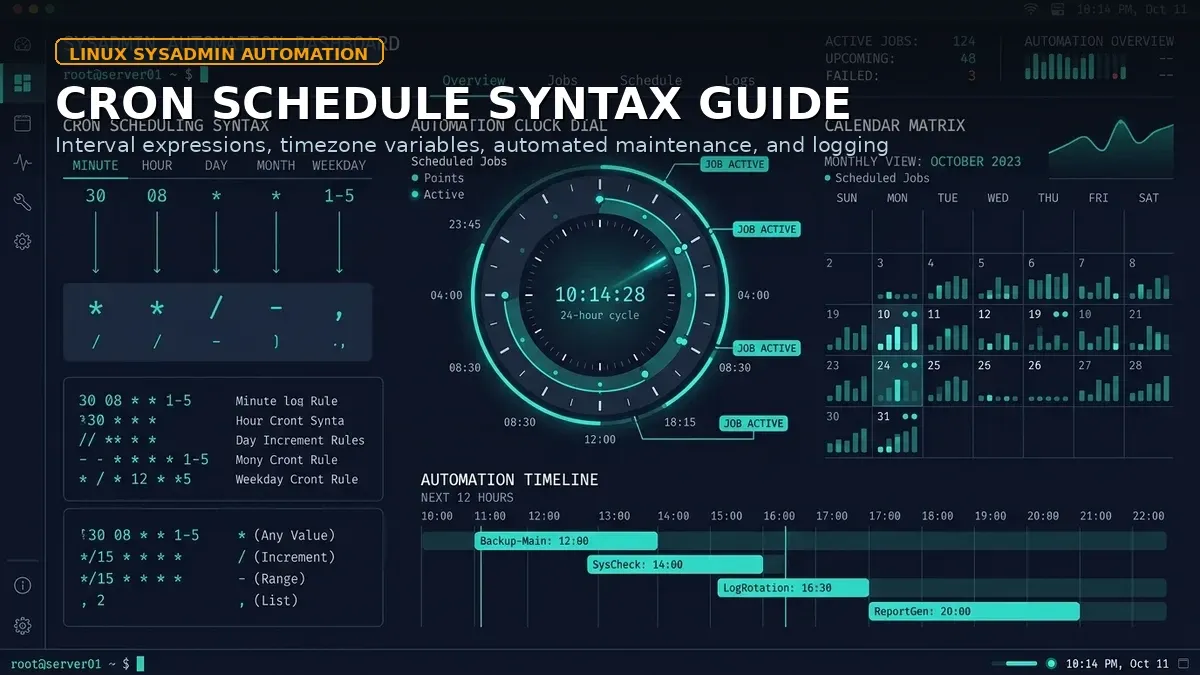
At 3:00 AM on the first day of every month, an e-commerce database server I inherited five years ago would suffer a painful CPU spike. When the 1st fell on a Sunday, it turned catastrophic and knocked the storefront offline for forty minutes.
The previous administration team blamed “database locking issues” and scheduled a recurring reminder to restart MySQL manually whenever it happened.
When I was brought in to audit the system, I did not start by tweaking MySQL buffers. I opened the crontab:
crontab -lThere it was, sitting on line 14:
0 3 1 * * /usr/local/bin/backup-full.sh
0 3 1 * * /usr/local/bin/generate-monthly-reports.sh
0 3 * * 0 /usr/local/bin/optimize-tables.sh
Whoever wrote those jobs made two classic blunders. First, they scheduled a full disk-intensive database dump and a heavy analytical report generator to fire at the exact same second (0 3 1 * *). Second, when the 1st day of the month happened to fall on a Sunday (0 3 * * 0), a third maintenance task joined the party. Three massive I/O workloads collided, choking disk throughput and locking tables until MySQL ground to a halt.
Cron is one of the oldest, most reliable automation engines in UNIX history. But because the five-field syntax looks deceptively simple, it is responsible for some of the most embarrassing production outages in infrastructure operations.
Here is a practical, field-tested guide to cron syntax, common schedule examples, and the operational habits that keep automated jobs running cleanly.
Deciphering the 5-field cron syntax
The standard Linux crontab expression consists of five sequential fields separated by white space, followed by the shell command to execute:
┌───────────── minute (0 - 59)
│ ┌───────────── hour (0 - 23)
│ │ ┌───────────── day of the month (1 - 31)
│ │ │ ┌───────────── month (1 - 12 or JAN - DEC)
│ │ │ │ ┌───────────── day of the week (0 - 7 or SUN - SAT, 0 and 7 = Sunday)
│ │ │ │ │
* * * * * command_to_execute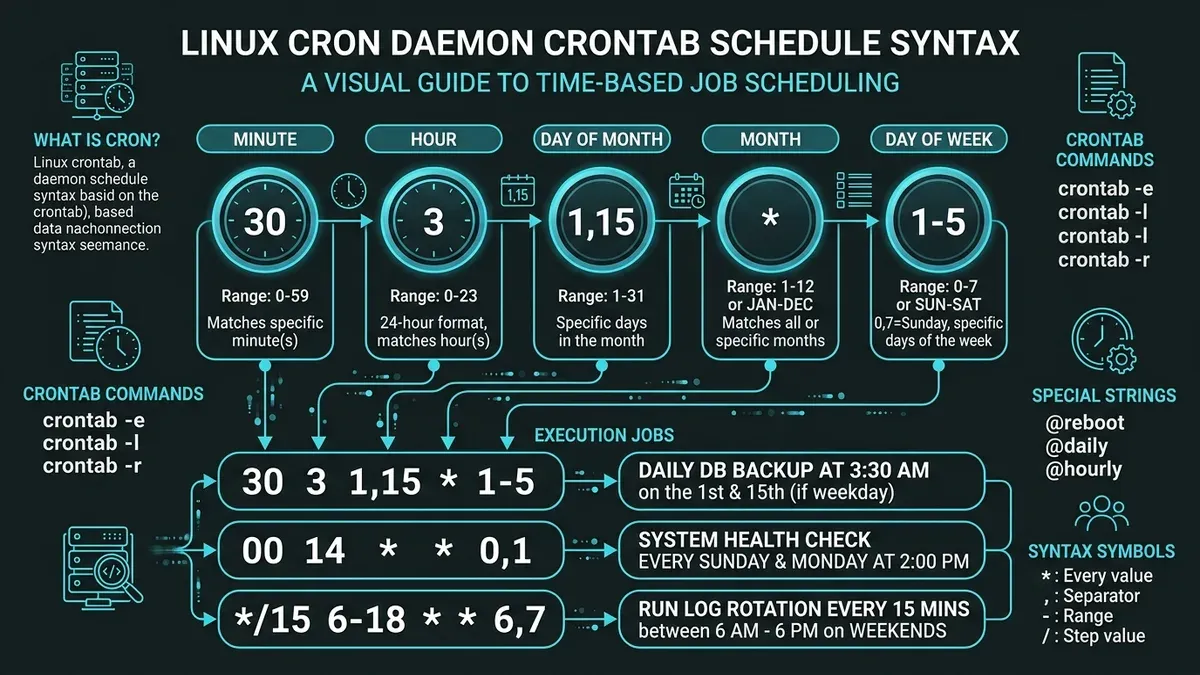
The four special operators
- Asterisk (
*): Matches every possible value.* * * * *means run every minute of every hour of every day. - Comma (
,): Specifies a discrete list of values.0 0 1,15 * *runs on the 1st and 15th of the month. - Hyphen (
-): Defines an inclusive range.0 9 1-5 * *runs Monday through Friday at 9:00 AM. - Slash (
/): Specifies step intervals.*/15 * * * *runs every 15 minutes.
If you ever find yourself squinting at a complex schedule wondering when it will actually trigger, test it interactively using our browser utility:
👉 DoWithSudo Cron Expression Generator & Parser
It translates cryptic five-field syntax into plain English sentences and projects your upcoming execution timelines instantly.
Essential crontab schedule examples
Here are the practical scheduling patterns every system administrator and DevOps engineer uses regularly.
1. High-frequency intervals
# Run every minute
* * * * * /scripts/check-health.sh

# Run every 5 minutes
*/5 * * * * /scripts/sync-cache.sh

# Run every 15 minutes during business hours (9 AM to 5 PM)
*/15 9-17 * * 1-5 /scripts/poll-queue.sh
Operational advice: Avoid running resource-heavy tasks every minute. If a job takes 65 seconds to complete, a new instance will spawn before the previous one finishes, triggering process pile-ups that eventually starve the host of memory and file handles.
2. Daily maintenance and backups
# Run every night at midnight (00:00)
0 0 * * * /scripts/daily-log-rotate.sh

# Run every morning at 3:30 AM
30 3 * * * /scripts/database-dump.sh

# Run twice daily at 06:00 and 18:00
0 6,18 * * * /scripts/sync-storage.sh
Why 3:30 AM instead of midnight? Most amateur scripts are set to 0 0 * * *. If multiple services or servers share network storage, scheduling tasks at non-standard minutes (like 3:17 AM or 4:22 AM) prevents simultaneous I/O spikes across your infrastructure.
3. Weekly and monthly schedules
# Run every Sunday at 02:00 AM
0 2 * * 0 /scripts/weekly-backup.sh

# Run on the 1st of every month at 04:00 AM
0 4 1 * * /scripts/monthly-billing.sh

# Run every quarter on the first day of Jan, Apr, Jul, Oct at 01:00 AM
0 1 1 1,4,7,10 * /scripts/quarterly-audit.sh
4. Special convenience shortcuts
The cron daemon supports several human-readable shorthand strings that replace the five numeric fields:
| Shortcut | Equivalent Syntax | Typical Use Case |
|---|---|---|
@reboot | Run once at system startup | Launching custom monitoring daemons or tunnel connectors |
@daily | 0 0 * * * | Daily cleanup scripts |
@hourly | 0 * * * * | Hourly metric rollups |
@weekly | 0 0 * * 0 | Weekly report generation |
@monthly | 0 0 1 * * | Monthly log archival |
The @reboot directive is particularly valuable in modern homelabs for starting background workers without building a full systemd unit.
The classic trap: Day of Month vs Day of Week
Here is the most dangerous quirk in UNIX cron syntax:
What happens when you specify both a day of the month (field 3) AND a day of the week (field 5)?
0 4 1-7 * 1 /scripts/run-audit.shMost engineers think this means: “Run on the first Monday of the month.”
It does not.
UNIX cron treats fields 3 and 5 with OR logic, not AND logic. That task will execute on days 1 through 7 of the month PLUS every Monday of the month!
If you genuinely need to run a task on the first Monday of every month, use an inline date check:
0 4 1-7 * * [ "$(date +\%u)" -eq 1 ] && /scripts/run-audit.shThe script evaluates whether today’s weekday number is 1 (Monday). If true, the command proceeds.
Operational best practices in production
- Always define absolute paths: Cron executes with a minimal shell environment. It does not load your personal
.bashrcor standard$PATH. Never writepython script.py. Always write/usr/bin/python3 /opt/app/script.py. - Redirect stdout and stderr: A cron job that generates uncaptured output will attempt to send local system mail via sendmail. If local mail is not configured, logs fill up in
/var/spool/mail. Direct output cleanly:0 2 * * * /opt/backup.sh >> /var/log/backup.log 2>&1 - Use lock files to prevent overlapping runs: If a backup script occasionally hangs due to slow network storage, use
flockto guarantee single-instance execution:*/10 * * * * /usr/bin/flock -n /tmp/backup.lock /opt/backup.sh - Tie scheduling into foundational Linux monitoring: Automated scripts should be observed and alerted on failure. Core Linux administration and log debugging habits are detailed in our basic Linux for system administrators guide, and our monitoring tools comparison helps you pick the right alerting stack.
Troubleshooting: Why does my cron job work in terminal but fail in crontab?
Every system administrator has uttered this sentence at least once: “I tested the script in my terminal and it worked perfectly, but crontab fails silently every night.”
This discrepancy almost always stems from the minimal environment cron provides.
1. The minimal PATH environment
When you log in via SSH, your shell executes /etc/profile, ~/.bashrc, and sets an expansive $PATH including /usr/local/bin, /home/user/.cargo/bin, and /snap/bin.
Cron executes in a bare non-interactive environment where $PATH is often stripped down to /usr/bin:/bin.
To prove this to yourself, create a temporary cron test:
* * * * * env > /tmp/cron-env.txtCompare /tmp/cron-env.txt to the output of env in your normal SSH terminal. You will notice that 90% of your environment variables, including locale, proxy settings, and custom library paths, do not exist inside cron.
2. Solutions for environment drift
To prevent environment issues:
- Declare PATH at the top of your crontab:
SHELL=/bin/bash PATH=/usr/local/sbin:/usr/local/bin:/sbin:/bin:/usr/sbin:/usr/bin MAILTO=sysadmin@example.com - Source your environment inside wrapper scripts:
#!/usr/bin/env bash
set -euo pipefail
source /etc/environment
source /home/deploy/.profile
python3 /opt/automation/task.py
3. Crontab permissions and user contexts
Remember that crontab -e edits the crontab for the current user. If your task requires root privileges (such as flushing iptables or restarting systemd daemons), running it in a standard user crontab will fail with permission errors.
Never run scripts under sudo crontab -e unless root privileges are genuinely mandatory. If a script only touches database files owned by postgres, add the job to the dedicated user crontab:
sudo crontab -u postgres -eSummary checklist
Before committing a new schedule to crontab -e:
- Verify execution time using an interactive tool like the DoWithSudo Cron Parser.
- Ensure all binaries and script references use full absolute paths.
- Direct log output to a dedicated log file or syslog.
- Offset schedules away from the top of the hour (
:00) to avoid shared infrastructure bottlenecks. - Wrap long-running batch jobs in
flockto prevent resource-choking overlapping runs.
Automation is the superpower of modern sysadmins, but only when it is predictable. Take five minutes to audit your cron schedules today, and sleep through the night without 3:00 AM wake-up calls.
Implementation Checklist
- Replicate the steps in a controlled lab before production changes.
- Document configs, versions, and rollback steps.
- Set monitoring + alerts for the components you changed.
- Review access permissions and least-privilege policies.
Official References
Need a Hand?
If you want this implemented safely in production, I can help with assessment, execution, and hardening.
Contact MeDeploy on Cloud Infrastructure with $200 Free Credit
Spin up high-performance SSD cloud Droplets, managed Kubernetes, and databases in seconds. Test your containers and production workloads with $200 in free credits.
Transparency: We independently test and operate all recommended infrastructure. If you use our partner links, you receive free promotional credits and support our testing lab at zero extra cost to you.
Weekly Production DevOps Runbooks
Join 1,000+ infrastructure engineers receiving real-world Linux troubleshooting, Proxmox clustering setups, and Docker optimization runbooks every Tuesday. Zero spam, unsubscribe anytime.

About the Author
Kamandanu Wijaya
IT Infrastructure & Network Administrator
Infrastructure & network administrator with 15+ years of enterprise experience, focused on stability, security, and automation.
Certifications: Google IT Support, Cisco Networking Academy, DevOps.
Docker OOMKilled: Fix Container Restart Loops
Next →Cloudflare Tunnel Ports: Which Ports Do You Need to Open?
Need IT Solutions?
DoWithSudo is ready to help setup servers, VPS, and your security systems.
Contact Us