Automated PostgreSQL Docker Backup to S3 with GPG Encryption
A developer I worked with recreated a PostgreSQL container during a routine image upgrade and lost eleven days of invoices. The data was not gone because of a crash. It was gone because the compose file mounted ./data:/var/lib/postgresql/data onto a directory that the container had created as postgres:postgres, and docker compose down followed by up re-chowned the host directory. PostgreSQL refused to start with FATAL: could not open directory "pg_notify": Permission denied, so the developer deleted the directory to get the service back online. That is a twenty second fix and a permanent data loss.
The second half of the story is worse. Their backup job existed. It ran nightly, logged a successful exit code, and wrote dumps that nobody had ever opened. When we finally tried to restore one, pg_restore failed on the first table because the archive had been truncated by a pipe that swallowed an error two months earlier.
This runbook covers the parts that actually decide whether you can recover. A container that will not lose the data directory, a dump stream that never touches local disk in plaintext, encryption with a key that survives the loss of the host, and a restore drill you run on a schedule rather than after an incident.
Where the Dump Should Never Touch
Most backup scripts written in a hurry do the same three things. They dump to /tmp, they compress the file, and they upload it. That works, and it leaves a plaintext copy of your entire database on a filesystem that any process on the host can read, plus a second copy in gzip format that is trivially decompressed.
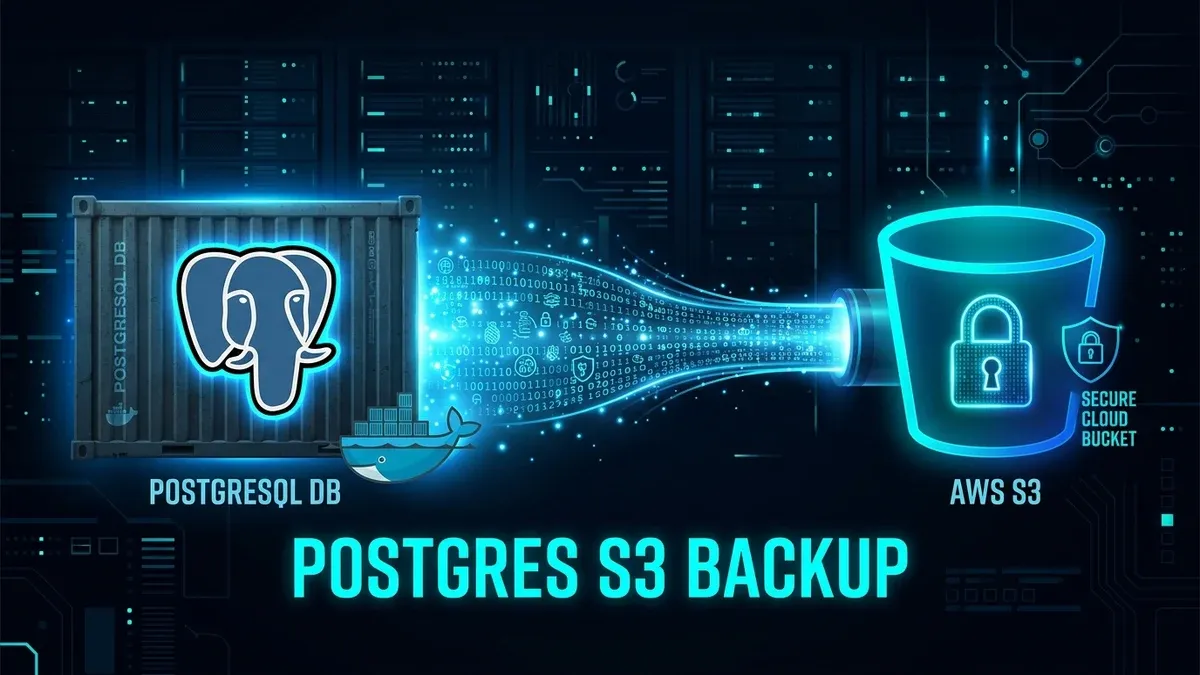
The pipeline below avoids local plaintext entirely. pg_dump writes to stdout inside the container, the stream is compressed and encrypted through pipes on the host, and only ciphertext reaches the storage backend. Nothing longer than a pipe buffer exists in readable form.
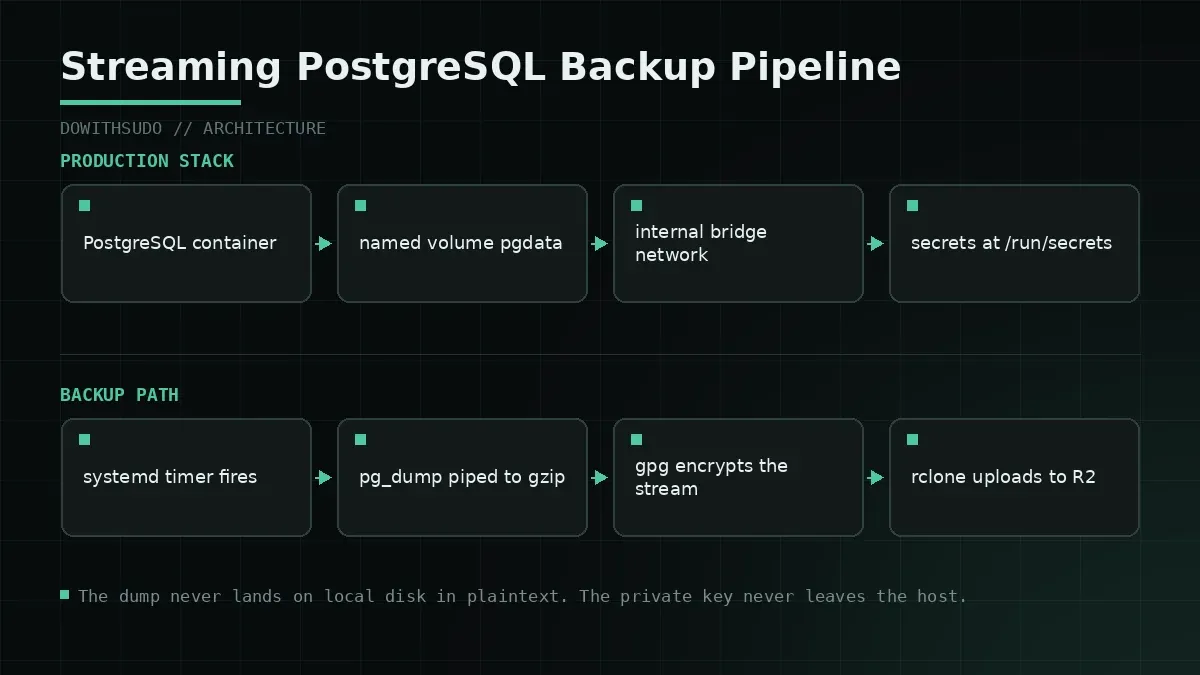
That design also changes the failure model. With a two step dump-then-upload, a full disk breaks your backups at 02:30 and the error is obvious. With a stream, a broken upload can look like a successful job, which is why the exit code handling in step 3 is not optional.
Step 1: A PostgreSQL Container That Keeps Its Data
Start with storage that survives container lifecycle events. Named volumes live under /var/lib/docker/volumes and are not touched by docker compose down.
# docker-compose.yml
services:
  postgres:
    image: postgres:16-alpine
    container_name: prod_postgres
    restart: unless-stopped
    networks:
      - internal_backend
    environment:
      POSTGRES_DB: app_production
      POSTGRES_USER_FILE: /run/secrets/db_user
      POSTGRES_PASSWORD_FILE: /run/secrets/db_password
    secrets:
      - db_user
      - db_password
    volumes:
      - pgdata:/var/lib/postgresql/data
    healthcheck:
      test: ["CMD-SHELL", "pg_isready -U $(cat /run/secrets/db_user) -d app_production"]
      interval: 10s
      timeout: 5s
      retries: 5
      start_period: 20s
    deploy:
      resources:
        limits:
          cpus: '2.0'
          memory: 2048M
    logging:
      driver: "json-file"
      options:
        max-size: "50m"
        max-file: "3"

volumes:
  pgdata:
    name: prod_postgres_pgdata

networks:
  internal_backend:
    driver: bridge
    internal: true

secrets:
  db_user:
    file: ./secrets/db_user.txt
  db_password:
    file: ./secrets/db_password.txt
The internal: true flag on the network means the backend cannot open connections to the internet, so a compromised dependency inside that network has nowhere to send stolen data. The named volume is the part that prevents the incident from the opening story. Together they cover most of what a database container needs before the backup question even comes up.
Step 2: Generate an Encryption Key You Will Still Have in Two Years
Backups encrypted with a key that dies with the server are decoration. Use public key encryption with a dedicated keypair, keep the public key on the host, and escrow the private key somewhere the host cannot reach.
# Create the backup keypair once, on an offline workstation.
gpg --batch --quick-generate-key "dowithsudo backup key <backup@dowithsudo.com>" rsa4096 encr never
gpg --export --armor backup@dowithsudo.com > backup-public.asc

# On the database host, import only the public key.
gpg --import backup-public.asc
gpg --list-keys backup@dowithsudo.com
Store the private key in a password manager or a sealed archive in a different custody chain, and write down the revocation certificate path. If the private key is lost, every archive in S3 becomes random bytes, and no amount of cloud provider support will help.
If your threat model does not justify a keypair, symmetric encryption with a passphrase file at mode 0400 is acceptable, and the gpg invocation changes slightly. The important property is the same one. The key must exist in at least two places, and one of them must not be the machine that generates backups.
Step 3: The Streaming Backup Script
This is the script I deploy to hosts that cannot run a full backup orchestration stack. It is deliberately boring.
#!/usr/bin/env bash
# /usr/local/sbin/pg-backup-r2.sh
set -euo pipefail

DB_CONTAINER="prod_postgres"
DB_NAME="app_production"
DB_USER="app_user"
REMOTE="r2:dowithsudo-backups/postgres"
STAMP="$(date -u +%Y-%m-%dT%H-%M-%SZ)"
TARGET="${REMOTE}/${DB_NAME}/${STAMP}.dump.gz.gpg"
LOCK="/run/pg-backup.lock"
RCLONE_CONFIG="/etc/rclone/rclone.conf"

# Prevent overlapping runs on a slow night.
exec 9>"${LOCK}"
flock -n 9 || { echo "backup already running"; exit 0; }

# Dump, compress, and encrypt in one pass. No plaintext touches the disk.
docker exec -T "${DB_CONTAINER}" \
  pg_dump -U "${DB_USER}" -d "${DB_NAME}" --format=custom --no-owner --no-privileges \
  | gzip -9 \
  | gpg --batch --quiet --yes --trust-model always \
        --encrypt --recipient backup@dowithsudo.com \
  | rclone --config "${RCLONE_CONFIG}" rcat "${TARGET}" \
        --s3-storage-class STANDARD_IA --retries 3 --low-level-retries 10

echo "uploaded $(basename "${TARGET}")"

# Retention: remove archives older than 30 days, then prune empty prefixes.
rclone --config "${RCLONE_CONFIG}" delete "${REMOTE}/${DB_NAME}" --min-age 30d
rclone --config "${RCLONE_CONFIG}" rmdirs "${REMOTE}/${DB_NAME}" --leave-root

# Verify today's object exists and is non-zero.
size=$(rclone --config "${RCLONE_CONFIG}" size "${TARGET}" --json | grep -o '"bytes":[0-9]*' | cut -d: -f2)
if [ "${size:-0}" -lt 1024 ]; then
  echo "ERROR: uploaded object is suspiciously small (${size} bytes)" >&2
  exit 1
fi
Three decisions in that script carry weight.
pg_dump --format=customproduces an archive thatpg_restorecan read selectively, including single tables. A plain SQL dump cannot do that without editing text.docker exec -Tdisables TTY allocation. Without-T,docker execinjects carriage returns into the binary stream and corrupts the archive in ways that only appear at restore time.rclone rcataccepts stdin, so the ciphertext goes straight to the object store. Add--s3-no-check-bucketif your credentials are scoped to a prefix and the bucket exists already.
If you prefer AWS CLI or the S3 API directly, the same pipeline works with aws s3 cp - s3://bucket/key. I use rclone because the same configuration handles S3, Cloudflare R2, Backblaze B2, and an SSH target without rewriting the script, and because R2 charges no egress fee, which matters on restore day.
Step 4: Run It From a systemd Timer, Not a crontab
A crontab entry gives you a log line in an email that nobody reads. A systemd unit gives you exit codes, journalctl history, and dependency ordering, and it can be retried.
# /etc/systemd/system/pg-backup.service
[Unit]
Description=Stream PostgreSQL dump to object storage
After=docker.service
Requires=docker.service

[Service]
Type=oneshot
User=root
ExecStart=/usr/local/sbin/pg-backup-r2.sh
Nice=10
IOSchedulingClass=idle
TimeoutStartSec=1800
# /etc/systemd/system/pg-backup.timer
[Unit]
Description=Nightly PostgreSQL backup
[Timer]
OnCalendar=*-*-* 02:30:00
RandomizedDelaySec=900
Persistent=true
AccuracySec=1min
[Install]
WantedBy=timers.targetsudo systemctl daemon-reload
sudo systemctl enable --now pg-backup.timer
sudo systemctl list-timers pg-backup.timer --no-pager
sudo journalctl -u pg-backup.service -n 30 --no-pagerPersistent=true runs a missed job shortly after boot, which is what you want on a host that reboots for kernel updates at 03:00. RandomizedDelaySec spreads load if you run this on several hosts. IOSchedulingClass=idle keeps the dump from competing with application I/O during business hours.
A backup that only runs when a human remembers is not a backup, it is a hope with a timestamp.
The isolation choices here also matter outside the timer. The host that holds your database credentials and your backup key should be the most locked down machine you own, and the baseline controls we apply to that host are collected in the Linux server hardening checklist. The container side of the same deployment, including secrets handling and healthchecks, is covered in our Docker Compose production guide.
Step 5: The Restore Drill That Proves All of This
This is the step that turns the previous four into something you can trust. Run it monthly against a throwaway database, not against production.
# 1. List available archives.
rclone ls r2:dowithsudo-backups/postgres/app_production | sort | tail -5

# 2. Create an empty target database.
docker exec -it prod_postgres psql -U app_user -d postgres -c "CREATE DATABASE restore_drill;"

# 3. Stream, decrypt, and restore in one pipeline.
rclone cat r2:dowithsudo-backups/postgres/app_production/2026-09-21T02-30-11Z.dump.gz.gpg \
  | gpg --batch --quiet --decrypt \
  | gunzip \
  | docker exec -i prod_postgres pg_restore -U app_user -d restore_drill --no-owner --clean --if-exists

# 4. Verify the restored data.
docker exec -i prod_postgres psql -U app_user -d restore_drill -c "\dt"
docker exec -i prod_postgres psql -U app_user -d restore_drill -c "SELECT count(*) FROM invoices;"

# 5. Drop the drill database.
docker exec -it prod_postgres psql -U app_user -d postgres -c "DROP DATABASE restore_drill;"
Record the wall clock time from step 3 to step 4. That number is your realistic recovery time for a logical restore, and it is usually larger than people assume. If the drill takes forty minutes, your incident communication plan should say forty minutes plus the time it takes to find the archive.
Logical dumps also have a limit that deserves a sentence. pg_dump captures a consistent snapshot at the moment it runs, so a 02:30 dump loses everything written between 02:31 and the failure. If losing up to twenty four hours is unacceptable, you need WAL archiving or continuous archiving with a tool such as pgBackRest or WAL-G, and this script becomes the secondary layer rather than the primary.
Failure Modes and Troubleshooting
1. The job reports success but the upload never happened
Symptom: systemctl status pg-backup shows inactive (dead) with exit code 0, and no new object appears in the bucket.
A pipeline without set -o pipefail returns the exit code of the last command only. If gpg fails, rclone may still exit zero after receiving an empty stream. Verify that the script starts with set -euo pipefail and add an explicit size check as shown above.
bash -n /usr/local/sbin/pg-backup-r2.sh
grep -n 'set -euo pipefail' /usr/local/sbin/pg-backup-r2.sh
2. pg_dump version mismatch with the server
Symptom: pg_dump: error: server version: 16.4; pg_dump version: 15.4 and the archive is empty.
docker exec -T prod_postgres pg_dump --version
docker exec -T prod_postgres psql --version
which pg_dump
The fix is to always call pg_dump inside the same container image as the server, which is what the script does. If you run pg_dump from the host for performance reasons, install a client package whose major version matches the server, and add a guard to the script that aborts when the versions differ.
3. The decryption key is missing at restore time
Symptom: gpg: decryption failed: No secret key during the drill.
gpg --list-secret-keys
gpg --list-keys backup@dowithsudo.com
This failure costs you every archive, not just one. Test the escrow path by restoring an old archive from a clean laptop or a CI runner that has never seen the database host. If the drill only ever runs on the machine that made the backup, it does not test the part most likely to fail.
4. Retention deleted the archives you needed
Symptom: rclone delete --min-age 30d removed everything because the object timestamps were rewritten by a sync, or the path filter was too broad.
rclone lsjson r2:dowithsudo-backups/postgres/app_production --max-depth 1 | head -5Always dry run retention changes with rclone delete --min-age 30d --dry-run first, and keep a separate bucket or lifecycle rule for archives you must retain for compliance rather than leaving it to a shell script.
Production Verification Checklist
| Check | Command | Expected |
|---|---|---|
| Named volume in use | docker inspect -f '{{json .Mounts}}' prod_postgres | prod_postgres_pgdata |
| Network isolated | docker network inspect prod_internal_backend | internal: true |
| Dump format usable | pg_restore --list on an archive | Table of contents prints |
| Script strict mode | grep 'set -euo pipefail' /usr/local/sbin/pg-backup-r2.sh | Present |
| Timer scheduled | systemctl list-timers pg-backup.timer | Next run within 24 hours |
| Last run succeeded | systemctl show -p ExecMainStatus pg-backup.service | 0 |
| Object size sane | rclone size <latest object> | Within 20 percent of median |
| Restore drilled this month | calendar | Drill log with duration |
| Key escrow verified | offline host | Decryption succeeds |
| Retention dry run | rclone delete --dry-run | Only stale objects listed |
Two rows in that table are not commands, and those are the two that matter. The drill log and the escrow check are the difference between a backup system and a nightly ritual.
Closing Thoughts
Docker makes PostgreSQL trivial to run and equally trivial to break, and the failure modes that hurt are rarely dramatic. A bind mount with the wrong permissions, a pg_dump truncated by a swallowed pipe error, a private key sitting on the same disk as the encrypted archive. Each of those is a one line mistake with a multi day consequence.
If you want the broader container foundation first, the lifecycle and volume mechanics are covered in our Docker complete guide, and the production hardening around it in the Compose guide linked above. What I would do this week is smaller than any of that. Pick one database, run the restore drill from the opening story, and see how long it takes and what breaks. The answer is usually uncomfortable, and it is much cheaper to learn it from a drill than from an invoice.
Implementation Checklist
- Replicate the steps in a controlled lab before production changes.
- Document configs, versions, and rollback steps.
- Set monitoring + alerts for the components you changed.
- Review access permissions and least-privilege policies.
Official References
Need a Hand?
If you want this implemented safely in production, I can help with assessment, execution, and hardening.
Contact MeDeploy on Cloud Infrastructure with $200 Free Credit
Spin up high-performance SSD cloud Droplets, managed Kubernetes, and databases in seconds. Test your containers and production workloads with $200 in free credits.
Transparency: We independently test and operate all recommended infrastructure. If you use our partner links, you receive free promotional credits and support our testing lab at zero extra cost to you.
Weekly Production DevOps Runbooks
Join 1,000+ infrastructure engineers receiving real-world Linux troubleshooting, Proxmox clustering setups, and Docker optimization runbooks every Tuesday. Zero spam, unsubscribe anytime.

About the Author
Kamandanu Wijaya
IT Infrastructure & Network Administrator
Infrastructure & network administrator with 15+ years of enterprise experience, focused on stability, security, and automation.
Certifications: Google IT Support, Cisco Networking Academy, DevOps.
Proxmox SDN and Firewall Rules for Strict Virtual Network
next →How to Extend LVM Thin Pool Without Unmounting on Linux Host
Need IT Solutions?
DoWithSudo is ready to help setup servers, VPS, and your security systems.
Contact Us