How to Check MX Records: dig, nslookup & Online Tools

The emergency ping arrived at 9:30 AM on a Monday from a client’s chief executive: “Danu, none of our corporate emails have arrived since Saturday. Customers are complaining that invoices are bouncing.”
For an infrastructure engineer, silence in the mail queue is worse than an outage alert. When web servers fail, people shout immediately. When email fails, messages silently queue on foreign mail servers, bounce after 48 hours, or land in black holes without anyone noticing until business deals collapse.
I cracked open my terminal, ran a five-word command, and the issue was staring back at me in bold text:
dig MX clientdomain.com +shortThe output was completely blank.
An intern had migrated their DNS zone file over the weekend to an external CDN provider and copied only the root A and CNAME records, completely forgetting the Mail Exchange (MX) records. To the entire internet, their corporate domain had ceased to accept email forty-eight hours earlier.
Whether you are configuring Google Workspace, Microsoft 365, or a self-hosted Postfix mail cluster, understanding how to query, parse, and verify MX records is a non-negotiable skill.
Here is the exact diagnostic workflow I use to audit Mail Exchange configurations in production. If you need an instant browser check without opening a terminal, you can also use our online MX record lookup tool.
What is an MX record and why does priority matter?
A Mail Exchange (MX) record is a DNS resource record that specifies which mail server is responsible for accepting inbound email on behalf of your domain name.
Unlike web traffic, where a domain resolves directly to an IP address via an A record, email delivery relies on a two-step lookup process:
Sender Mail Server (MTA)
       │
       ▼ Step 1: DNS Query for MX Records
┌───────────────────────────────────────┐
│ "What are the MX servers for domain?" │
└──────────────────┬────────────────────┘
                   │
                   ▼ Step 2: Receive Priority List
┌───────────────────────────────────────┐
│ 10  mail1.domain.com (Primary)        │
│ 20  mail2.domain.com (Backup)         │
└──────────────────┬────────────────────┘
                   │
                   ▼ Step 3: Resolve Host A Record
┌───────────────────────────────────────┐
│ mail1.domain.com ──► 198.51.100.25    │
└───────────────────────────────────────┘
The sender’s Mail Transfer Agent (MTA) connects to the IP address with the lowest priority number. If the server with priority 10 fails to answer on TCP port 25 within the timeout threshold, the sender tries priority 20.
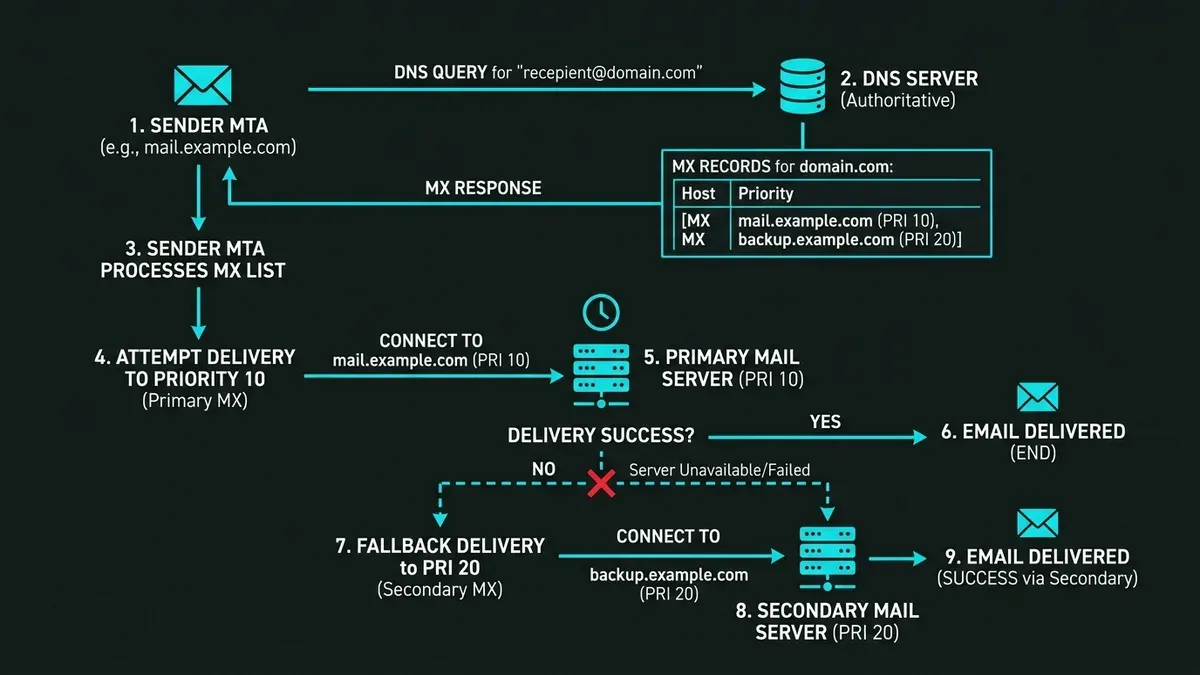
Crucial rule: An MX record must never point directly to an IP address. It must point to a fully qualified domain name (FQDN) that resolves to an A or AAAA record. Pointing an MX record to a CNAME alias violates RFC 2181 and causes sporadic delivery failures across strict enterprise mail servers.
Querying MX records using command-line tools
When auditing DNS, I always start with command-line utilities. They bypass browser caching and query authoritative nameservers directly.
Method 1: The gold standard with dig
dig (Domain Information Groper) is the undisputed tool of choice for Linux and macOS administrators.
To perform a basic MX lookup:
dig MX google.comLook at the ANSWER SECTION in the output:
;; ANSWER SECTION:
google.com.		300	IN	MX	10 smtp.google.com.
The output breaks down into clear components:
google.com.: The domain queried.300: The Time to Live (TTL) in seconds.IN: Internet class.MX: Record type.10: Preference priority (lower number wins).smtp.google.com.: The destination mail server host.
To extract only the clean priority and hostname list, use +short:
dig MX digitalocean.com +shortOutput:
1 aspmx.l.google.com.
5 alt2.aspmx.l.google.com.
10 aspmx3.googlemail.com.
Querying authoritative nameservers directly
Local DNS caches can lie to you during migrations. To verify what your authoritative nameservers are serving before worldwide propagation finishes, query the authoritative server directly with @:
dig @ns1.cloudflare.com MX yourdomain.com +shortThis cuts through ISP recursive resolver caches and gives you the ground truth of your active zone file.
Method 2: Cross-platform queries with nslookup
If you are on a bare-bones Windows machine or a container lacking bind-utils, nslookup is built into virtually every operating system.
In interactive or command mode:
nslookup -type=MX yourdomain.com 8.8.8.8Expected output:
Server:		8.8.8.8
Address:	8.8.8.8#53

Non-authoritative answer:
yourdomain.com	mail exchanger = 10 mail.yourdomain.com.
Method 3: Instant web auditing with DoWithSudo MX Lookup
When you are on mobile, presenting to a client, or need a clean report without firing up a terminal, use our dedicated browser-based tool:
👉 DoWithSudo MX Record Checker
It instantly queries global DNS resolvers, validates priority chains, and alerts you if an MX target points incorrectly to a CNAME alias or lacks corresponding A records.
Common MX configuration mistakes in the field
Over fifteen years of sysadmin work, these three mistakes cause 95% of all mail deliverability disasters:
| What administrators do | Why it breaks production mail delivery |
|---|---|
| Pointing MX directly to an IP address | Violates RFC specs. Remote mail transfer agents reject the connection |
| Pointing MX to a CNAME record | RFC 2181 explicitly forbids MX pointing to CNAME. Causes random bounces |
| Setting equal priority on dissimilar servers | Senders load-balance 50/50 between your primary server and an unconfigured backup |
| Leaving trailing dot off zone files | BIND appends the domain twice (mail.domain.com.domain.com) |
In our detailed Email Deliverability SPF DKIM DMARC case study, we saw how valid MX records are only the first step. Once mail arrives, your SPF, DKIM, and DMARC alignments determine whether messages reach the inbox or get discarded as spam.
Verifying SMTP connectivity on port 25
Confirming your MX records exist in DNS does not mean your server is actually accepting mail. An MX record is simply a signpost pointing down a road. If the bridge at the end of the road is washed out, mail still cannot pass.
Once you have the hostname from your MX lookup, verify that TCP port 25 is actively answering:
nc -zv mail.yourdomain.com 25Or connect via interactive telnet / OpenSSL to inspect the SMTP banner:
Trying 198.51.100.25...
Connected to mail.yourdomain.com.
Escape character is '^]'.
220 mail.yourdomain.com ESMTP Postfix
If the connection times out, check both sides. The network you are testing from may block outbound port 25 (common on AWS EC2, DigitalOcean, and residential ISPs to prevent spam botnets). And your mail server’s own firewall or cloud security group must allow inbound TCP 25 from the internet.
Deep-dive: Understanding MX priority math and backup traps
Many junior administrators misunderstand the preference value in an MX record. They assume priority 10 and 20 means traffic is distributed 1:2.
It does not. Priority numbers define a strict cascade hierarchy:
| Priority Value | Server Role | Behavior Under Load |
|---|---|---|
| 10 | Primary Mail Exchanger | Accepts 100% of all inbound mail under normal conditions |
| 20 | Secondary / Fallback Server | Only contacted when priority 10 fails to answer on port 25 |
| 50 | Disaster Recovery Mail Queue | Accepts mail during major data center blackouts, holding messages in spool |
When you assign identical priority values (e.g., two records both set to 10), senders randomize or round-robin requests between them. This is only valid if both servers share the same mailbox database or mail store.
The dangerous backup MX trap
Setting up a “backup MX” without strict spam filtering is one of the classic ways spammers bypass your defenses.
Spam bots intentionally query your DNS, ignore your primary mail server (priority 10), and transmit spam directly to your backup MX (priority 20), gambling that the backup server has weaker spam filtering or looser rate limits. The backup server accepts the message and dutifully forwards it internally to your primary inbox!
Unless your secondary MX has identical spam filtering policies and synchronized recipient verification, running a single robust primary MX is far safer than maintaining a neglected backup node.
Real field case: The vanishing invoice disaster
A retail client once migrated their DNS from an old registrar to a modern cloud provider. The web team tested www.client.com and confirmed the homepage loaded in 200ms. They celebrated and went home for the weekend.
By Tuesday morning, customer service was under siege. Not a single inbound support ticket had arrived.
When I ran dig MX client.com, the response was empty. But when I queried their old registrar’s nameservers directly with dig @ns1.oldregistrar.com MX client.com, the Google Workspace MX records were still sitting there. The migration checklist had neglected DNS records that did not begin with www or api.
We restored the MX records immediately, but the damage was done: hundreds of senders received bounce notifications (550 5.1.1 User unknown), forcing the sales team to spend two days issuing manual apologies.
Diagnostic checklist for email troubleshooting
Before you panic over missing emails, run through this concise checklist:
- Check the MX records: Run
dig MX yourdomain.com +shortto confirm records exist. - Validate the target A record: Run
dig A <mail_hostname> +shortto verify the MX destination resolves to an active IP. - Verify authoritative servers: Query your NS servers directly to rule out DNS caching delays.
- Test port 25 reachability: Confirm firewall rules and cloud security groups allow inbound SMTP.
- Check reverse DNS (rDNS / PTR): Ensure the public IP of your mail server has a valid PTR record matching your hostname.
Mastering DNS troubleshooting is the hallmark of a confident system administrator. Understanding how records propagate and how daemons interact turns stressful outages into straightforward five-minute fixes. The same command-line fundamentals, from querying records to reading logs, are covered in my basic Linux for system administrators guide.
When was the last time you audited your domain MX records? Have you ever had a zone migration silently drop your email delivery?
Implementation Checklist
- Replicate the steps in a controlled lab before production changes.
- Document configs, versions, and rollback steps.
- Set monitoring + alerts for the components you changed.
- Review access permissions and least-privilege policies.
Official References
Need a Hand?
If you want this implemented safely in production, I can help with assessment, execution, and hardening.
Contact MeDeploy on Cloud Infrastructure with $200 Free Credit
Spin up high-performance SSD cloud Droplets, managed Kubernetes, and databases in seconds. Test your containers and production workloads with $200 in free credits.
Transparency: We independently test and operate all recommended infrastructure. If you use our partner links, you receive free promotional credits and support our testing lab at zero extra cost to you.
Weekly Production DevOps Runbooks
Join 1,000+ infrastructure engineers receiving real-world Linux troubleshooting, Proxmox clustering setups, and Docker optimization runbooks every Tuesday. Zero spam, unsubscribe anytime.

About the Author
Kamandanu Wijaya
IT Infrastructure & Network Administrator
Infrastructure & network administrator with 15+ years of enterprise experience, focused on stability, security, and automation.
Certifications: Google IT Support, Cisco Networking Academy, DevOps.
Cloudflare Tunnel Ports: Which Ports Do You Need to Open?
Next →Proxmox Storage Guide: ZFS, Ceph, and LVM-Thin Compared
Need IT Solutions?
DoWithSudo is ready to help setup servers, VPS, and your security systems.
Contact Us