Basic Linux for System Administrators You Need to Know

As a basic Linux system administrator, the real value is not memorizing commands but understanding context, risk, and impact when you touch production systems.
Prologue: the mistake that changed my perspective
I remember that day clearly. It was a Friday evening in 2013. The sky was dark, and the server room felt even colder.
I was a junior IT support with enthusiasm and, honestly, a bit careless. We had a web app permission error, a tight deadline, and my boss calling every few minutes. In panic, I typed the classic beginner sin: chmod -R 777 /var/www.
“Done,” I thought. “The app is running. I am a genius.”
Three days later, on Monday morning, that server became a spam botnet farm. The website got defaced, the database corrupted, and our IP reputation was blacklisted everywhere. I spent the next 48 hours rebuilding the server with no sleep and a lot of shame.
1.1 the core lesson
That day taught me one hard rule: In Linux, “it works” is not enough. You must know why it works.
This article is not a list of commands. It is a survival foundation to keep you safe from 3 a.m. panic calls.
Mindset: avoid copy-paste engineering
The biggest trap for beginner sysadmins is dependency on instant tutorials.
You see an error, copy it to Google, open the first StackOverflow result, and paste the fix into production.
Stop. Breathe.
I have watched new admins do this. Sometimes I want to slap their keyboard. “Read first,” I say. “You just told the system to delete root.”
2.1 a risky habit
Linux is obedient. If you tell it to destroy itself, it will do it without hesitation.
System administration is not about memorizing 1000 commands. It is about understanding the system anatomy. Let us break it down properly.
Identity, privilege, and context
Before touching production, know who is executing a command and under what context.
3.1 core commands
whoami,id,groupssudo -lumask
3.2 practical rules
- Run commands as a regular user first.
- Use
sudoonly when truly required. - Separate admin, service, and app accounts.
File permissions and ownership
Back to my fatal mistake: chmod 777.
Linux enforces strict ownership and permissions. Every file has an owner (user) and a group (group).
- Read (4): view content.
- Write (2): modify or delete.
- Execute (1): run a program or enter a directory.
4.1 why 777 is dangerous
777 means everyone can read, write, and execute. It is like leaving your house unlocked with a sign saying, “Take whatever you want.”
4.2 least-privilege practice
Never use 777 in production.
Apply least privilege so the app can run without exposing the system.
- Config files:
640or644(avoid world-read for sensitive data). - Executable scripts:
755(rwxr-xr-x). - Public upload directories: allow write only for the service account (for example
www-data).
4.3 permission checklist
ls -lahchown -R user:groupchmod u=rw,g=r,o=
Also learn setuid, setgid, and the sticky bit (/tmp uses it). These can be escalation paths if ignored.
During client audits, I often think: “Who gave root ownership to this public folder?”
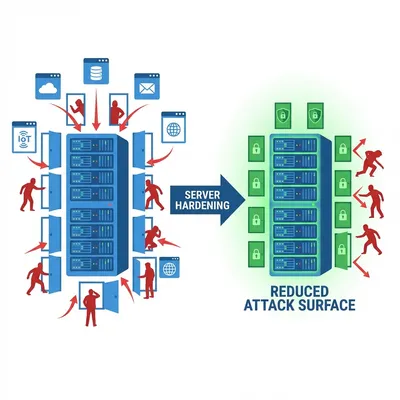
Related: Linux Server Hardening Best Practices
Processes and load average
Slow server? Do not restart first. Diagnose.
5.1 reading load average
Use top or htop. Load average shows 1, 5, and 15-minute windows.
Supermarket analogy:
Your CPU is a cashier.
- Load 0.0: idle.
- Load 1.0: one person in line.
- Load 5.0 (single core): five people in line. One is served, four are waiting.
If you have 4 cores, a load of 4 is acceptable. A load of 20 is a disaster.
Technical context:
- Load average = runnable tasks + uninterruptible sleep (often I/O wait).
- High load can mean CPU saturation or slow storage.
5.2 diagnosis tools
Use a combination:
toporhtopvmstat 1forwaandriostat -xz 1for disk latency and utilization
5.3 killing with etiquette
Find the culprit: ps aux | grep [process_name]. Then be careful with kill.
kill -15 [PID](SIGTERM): graceful shutdown.kill -9 [PID](SIGKILL): force stop. Last resort only.
I once ran
kill -9on a database during heavy transactions. Corrupted data followed.
Memory, cache, and oom
Linux uses RAM for cache. That is normal.
6.1 oom signals
Key commands:
free -h(checkavailable)cat /proc/meminfodmesg -T | grep -i oom
Common signals:
- processes die without clear errors
- logs show
Out of memory: Kill process - heavy swap and high
si/soinvmstat
6.2 mitigation strategy
Do not just add RAM. Check for memory leaks, profile the app, and apply cgroup limits.
Log files and investigation
Your black box is /var/log.
7.1 key log locations
/var/log/syslogor/var/log/messages/var/log/nginx/error.logjournalctl -xe
7.2 reading in real time
Use tail -f to watch logs live. Reproduce the error and read the output.
There is a quiet satisfaction when your eyes catch the exact line: “Out of Memory: Kill process mysqld”.
Related: Docker container crash case study
Disk usage and inodes
“Disk full even though files look small.” Classic.
8.1 size vs inodes
Disk can be full for two reasons:
- Size full: large files.
- Inodes full: too many small files.
Check with df -i.
8.2 cleanup tactics
Use du -h --max-depth=1 / | sort -hr for size, and find . -type f -delete to clean inode-heavy folders.
I once found 4 million spam queue files that crashed a mail server.
Filesystem and mounts
Production issues often come from bad mounts or unstable storage.
9.1 essential tools
lsblk,blkidmount,findmntfstab
9.2 safer practices
- Mount by UUID, not
/dev/sdX. - Use
nofailandx-systemd.automountfor non-critical disks. - Watch I/O errors with
dmesg -T | grep -i error.
Networking for sysadmins
Sometimes the problem is not the server, but the network.
10.1 must-have tools
pingcurl -vss -tulpn
10.2 DNS and ports
Extra essentials:
- DNS debug:
dig +short domain,resolvectl status,/etc/resolv.conf - TCP:
ss -tan state established - Firewall:
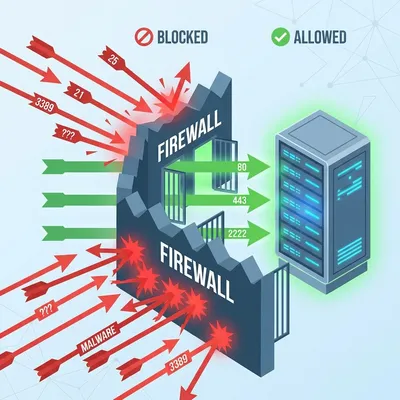
ufw statusoriptables -L -n -v/nft list ruleset
Service management with Systemd
In modern distros, systemd is the control center. Do not just restart, read status first.
11.1 status and logs
systemctl status servicejournalctl -u service -bsystemctl show service
11.2 troubleshooting flow
- Check status
- Read logs
- Fix config and permissions
- Restart after the fix
Packages and updates
Blind updates in production are risky.
12.1 version control
apt-cache policyordnf infoapt-mark hold
12.2 update strategy
- Snapshot VM before major updates.
- Read changelogs for critical services.
- Test in staging before production.
Closing: mindset over memorization
Being a senior sysadmin is not about memorizing every tar flag. It is about calmness and method.
When production goes down, follow this flow:
- Check connectivity.
- Check CPU and RAM.
- Read logs.
- Isolate the issue.
- Apply the fix.
Do not guess. Do not shoot in the dark.
Open your terminal. Type whoami. Take responsibility for every command you run.
Internal link suggestions:
- Linux server hardening best practices
- Docker container crash case study
- LVM storage failure case study
Implementation Checklist
- Replicate the steps in a controlled lab before production changes.
- Document configs, versions, and rollback steps.
- Set monitoring + alerts for the components you changed.
- Review access permissions and least-privilege policies.
Official References
Need a Hand?
If you want this implemented safely in production, I can help with assessment, execution, and hardening.
Contact Me
About the Author
Kamandanu Wijaya
IT Infrastructure & Network Administrator
Infrastructure & network administrator with 14+ years of enterprise experience, focused on stability, security, and automation.
Certifications: Google IT Support, Cisco Networking Academy, DevOps.
View ProfileNeed IT Solutions?
DoWithSudo team is ready to help setup servers, VPS, and your security systems.
Contact Us