Proxmox Web UI Not Loading: Fix Port 8006 Connection Refused
Article Details
Category
SecurityThe incident hit my terminal at 7:15 AM on a rainy Tuesday. My coffee was barely lukewarm, and my phone was already buzzing off the wooden desk.
The message from a frantic junior sysadmin was breathless: “Danu, the main hypervisor host is dead. The entire client cluster is down. Web console won’t load.”
When you spend fifteen years crawling out of IT support trenches into infrastructure engineering, you recognize panic from a mile away. It is contagious, expensive, and almost always wrong about the cause. The junior’s finger was already hovering over the IPMI remote power reset button.
I told him to freeze. “Do not touch that reset switch. Take your hands off the keyboard for ten seconds.”
I fired a basic ICMP echo request from my workstation to the node IP:
ping -c 3 192.168.1.2Three packets transmitted, three packets received, 0.42 ms round-trip time.
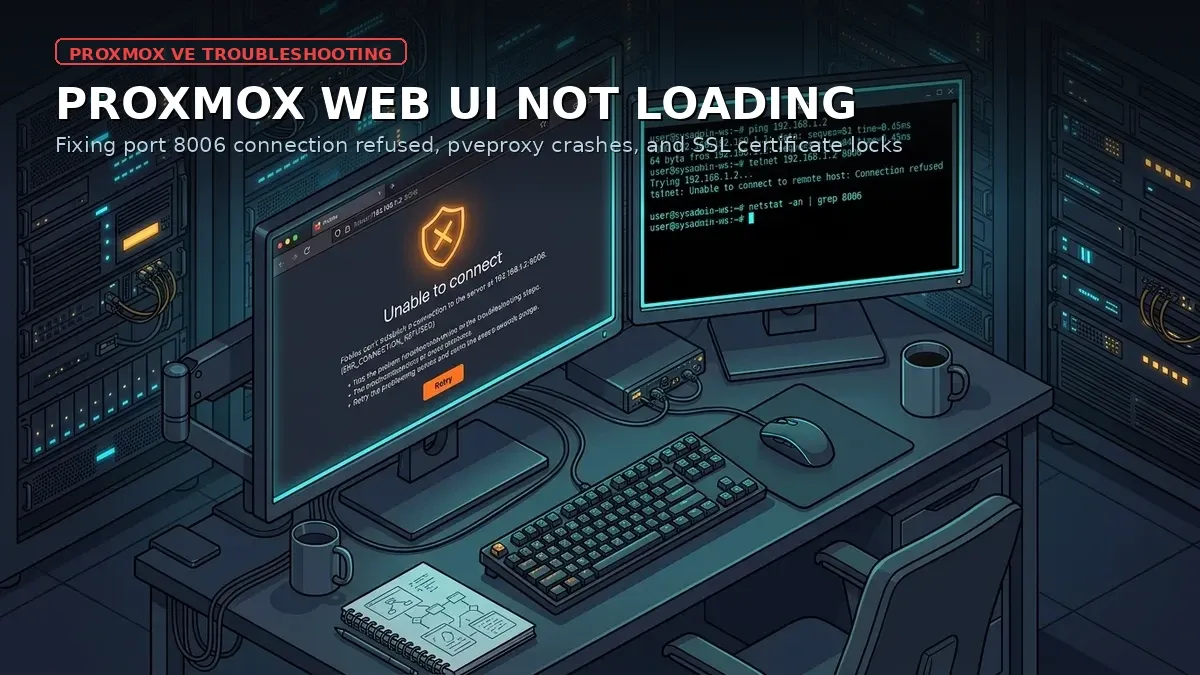
The machine was wide awake. The enterprise VMs humming inside were happily serving customer traffic without dropping a single packet. Yet when you pointed Chromium or Firefox at https://192.168.1.2:8006, the browser spun endlessly before spitting out that cold, frustrating verdict: ERR_CONNECTION_REFUSED.
Early in my career, without a formal computer science degree, I used to treat hypervisor web portals like magical black boxes. If the UI did not load, my gut told me the server had died. But reality in production teaches you a harsher, cleaner truth: a web interface is just another userland daemon.
Behind that browser timeout sits a chain of fragile components: systemd supervision, TLS certificate expiration, clustered filesystem quorums, and raw kernel firewall rules.
Here is how we diagnose and fix Proxmox port 8006 when the web UI goes dark, without rebooting the node or causing a second of client downtime.
The illusion of a dead hypervisor
Hitting the physical power button when a web interface stalls is the hallmark of panic-driven administration.
If the control console is stuck, smashing reset will only introduce you to real pain.
In a multi-node Proxmox cluster, pulling the plug while corosync communication is shaky can trigger an unholy split-brain state, fencing loops, or corrupted VM disk writes on shared storage. You turn a five-minute daemon restart into an unpaid, all-night data recovery nightmare.
Think of Proxmox like a heavy commercial engine. The engine block and drive shaft (the KVM hypervisor, QEMU processes, and Open vSwitch networking) operate independently of the dashboard gauges. The web interface is merely the digital dashboard on your steering column. When a dashboard gauge bulb burns out, the truck is still barreling down the highway at 60 miles per hour.
Proxmox does not run Nginx or Apache. Its web UI is driven by pveproxy, an event-driven Perl daemon that listens on TCP port 8006 over TLS. When an admin logs in, pveproxy forwards instructions to pvedaemon over local Unix sockets, which in turn reads and writes configuration files stored inside /etc/pve.
Browser (HTTPS Client)
       │
       ▼ (TCP Port 8006, TLS)
┌───────────────────────────────────────┐
│  pveproxy.service (Listening Daemon)  │
└──────────────────┬────────────────────┘
                   │ (Unix Domain Socket IPC)
                   ▼
┌───────────────────────────────────────┐
│  pvedaemon.service (API Execution)    │
└──────────────────┬────────────────────┘
                   │
                   ▼
┌───────────────────────────────────────┐
│  pmxcfs / Corosync (/etc/pve Engine)  │
└───────────────────────────────────────┘
If pveproxy runs out of file handles, chokes on a bad SSL certificate, fills up root disk logs, or loses write access because the cluster lost quorum, port 8006 shuts down.
Meanwhile, your VMs continue running untouched. Rule number one: separate the data plane from the control plane.
What it looks like vs what actually happened
When troubleshooting in production, our initial assumptions are usually shaped by ego or panic. Here is what we thought happened versus what the system logs revealed:
| What it looks like on the surface | What actually happened under the hood |
|---|---|
| “The Proxmox server crashed and died” | Only the pveproxy daemon died. The hypervisor kernel is 100% fine |
| “Hacker breached the server and blocked port 8006” | No breach at all. A leftover pve-firewall rule from an earlier change was silently dropping the management subnet |
| “Need a physical reboot to clear memory” | Root partition was 100% full from runaway /var/log rotated journals |
| “Corosync cluster hardware failure” | Local /etc/pve entered read-only protection due to lost voting quorum |
| “Proxmox bug in the new version” | Self-signed SSL certificate expired or ACME renewal script broke silently |
Recognizing the difference between these two columns saves you hours of pointless stress.
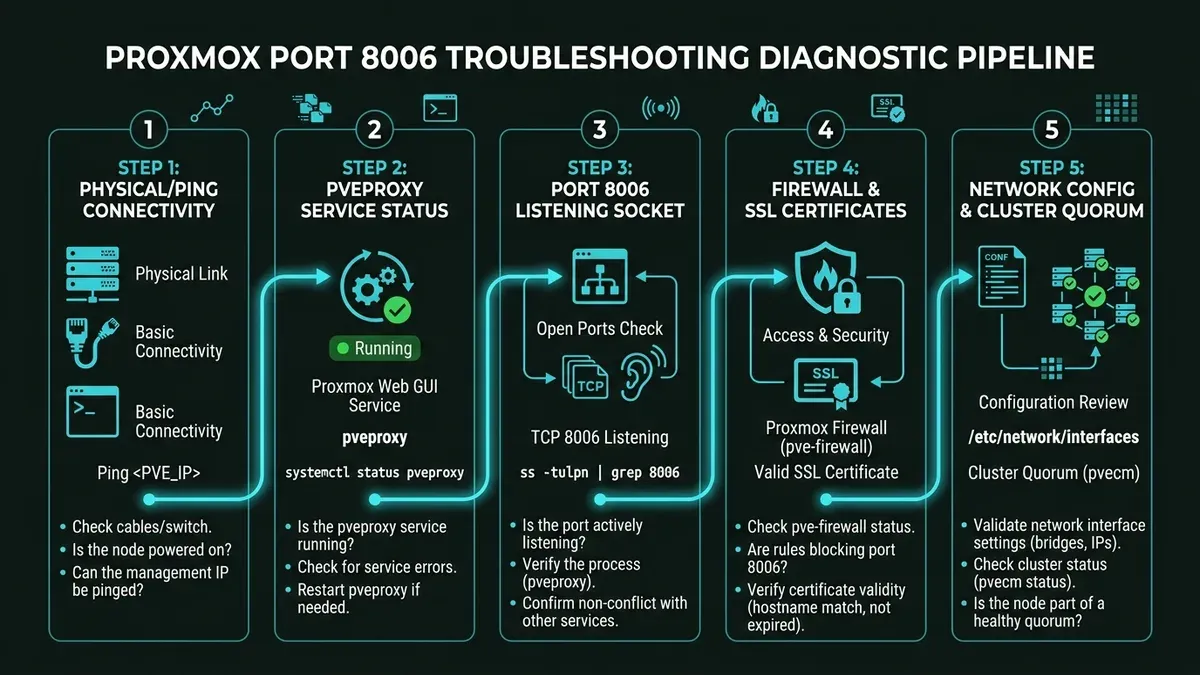
Systematic 5-step diagnostic pipeline
Whenever port 8006 stops answering, I refuse to guess. We follow a strict diagnostic pipeline from raw network reachability down to cluster state.
Step 1: Verify raw network and SSH reachability
Before touching any Proxmox daemon, confirm if the problem is network routing or the host itself. From your administration machine:
ping -c 4 192.168.1.2If ICMP fails, your issue is physical cabling, VLAN tagging on the switch trunk, or an IP address collision on the subnet.
If ping succeeds, try opening an SSH session:
ssh root@192.168.1.2If you can establish an SSH shell, breathe a sigh of relief. You have full command-line control of the host kernel, and your running VMs are safe.
If ping works but SSH also fails with a timeout, your host firewall or access control list has slammed shut.
Step 2: Inspect pveproxy and pvedaemon service status
With an active shell on the node, look at the health of the two daemons that power the web interface:
systemctl status pveproxy.service pvedaemon.serviceOn a normal, healthy Proxmox node, you should see both units glowing active:
● pveproxy.service - PVE API Proxy Server
     Loaded: loaded (/lib/systemd/system/pveproxy.service; enabled; preset: enabled)
     Active: active (running) since Thu 2026-09-03 08:14:22 UTC; 5h 38min ago
   Main PID: 1284 (pveproxy)
      Tasks: 4 (limit: 76878)
     Memory: 184.2M

● pvedaemon.service - PVE API Daemon
     Loaded: loaded (/lib/systemd/system/pvedaemon.service; enabled; preset: enabled)
     Active: active (running) since Thu 2026-09-03 08:14:20 UTC; 5h 38min ago
   Main PID: 1198 (pvedaemon)
If pveproxy is listed as failed or inactive (dead), print out the recent journal entries:
journalctl -u pveproxy -n 50 --no-pagerRead the exact crash line. Is it throwing an SSL handshake error? Is it screaming about /etc/pve being read-only? Let the journal tell you what broke instead of guessing.
Step 3: Check port 8006 listening sockets and process binding
Is the Linux kernel actually listening on port 8006? Check active socket bindings using ss:
ss -tulpn | grep 8006Expected output:
tcp LISTEN 0 128 0.0.0.0:8006 0.0.0.0:* users:(("pveproxy worker",pid=1450,fd=6),("pveproxy",pid=1284,fd=6))If ss returns completely blank while systemd reports pveproxy is active, the daemon is in a zombie state or unable to bind the interface. Restart it cleanly:
systemctl restart pveproxyWatch the reload in real time:
journalctl -u pveproxy -fIf it restarts and instantly dies within two seconds, you are dealing with a disk exhaustion issue, corrupted SSL keys, or a corosync quorum lock.
Step 4: Validate SSL certificates and filesystem permissions
Proxmox strictly requires HTTPS. If the SSL certificate files located in /etc/pve/local/ are corrupt, empty, or permissions were changed by an errant script, pveproxy refuses to initialize its TLS context.
Check the certificate files:
ls -la /etc/pve/local/pve-ssl.pem /etc/pve/local/pve-ssl.keyBoth files must exist and possess non-zero byte size. If an automated Let’s Encrypt script failed during renewal or left a truncated file behind, regenerate the default Proxmox self-signed certificates immediately:
pvecm updatecerts -f
systemctl restart pveproxy
The -f flag forces regeneration of cluster certificates without destroying existing cluster keys. Once rebuilt, pveproxy restarts with fresh cryptographic credentials.
Step 5: Check pmxcfs and cluster quorum status
This is the sneaky issue that catches junior admins off guard.
Proxmox stores its entire configuration in /etc/pve, which is not a regular disk partition. It is a cluster filesystem driven by FUSE called pmxcfs. In a multi-node cluster, pmxcfs requires corosync quorum (majority vote) to allow write operations.
If network connectivity between nodes drops, or if two nodes in a three-node cluster go down, the surviving node loses quorum. To prevent split-brain data corruption, pmxcfs locks itself into strict read-only mode.
When /etc/pve is read-only, pveproxy cannot write session and authentication state, so logins fail or hang even though port 8006 may still answer. If you are recovering an isolated node or diagnosing network partitions across cluster nodes, follow our runbook on Proxmox cluster quorum troubleshooting and Corosync recovery.
Check quorum status:
pvecm statusExamine the output:
Quorum information
------------------
Date:             Thu Sep  3 13:40:12 2026
Quorum provider:  corosync_auth_cp
Nodes:            3
Node ID:          0x00000001
Ring ID:          1.1a
Quorate:          Yes
If Quorate: says No, your node is isolated from its peers.
For emergency recovery on a surviving node so you can access the web UI and manage VMs:
pvecm expected 1This tells the local corosync engine to consider 1 vote sufficient for quorum. The clustered filesystem unlocks, pveproxy resumes read-write access to session keys, and the web interface comes back to life instantly.
Real field breakdowns and exact CLI fixes
Over fifteen years of troubleshooting servers, these four practical scenarios account for nearly every Proxmox web UI failure I have dealt with.
1. Root disk exhaustion (100% full partition)
You can write the cleanest configurations in the world, but if your disk runs out of blocks, Linux will grind to a halt.
When log files or failed backups consume all free blocks on /, pveproxy cannot create temporary PID files or socket locks:
df -h /If Use% shows 100%, look inside /var/log:
du -sh /var/log/* | sort -hClean out old systemd journals and uncompressed rotate files:
journalctl --vacuum-size=200M
rm -f /var/log/*.gz /var/log/*.1
systemctl restart pveproxy
Instantly, disk blocks free up, and the web daemon restarts cleanly.
2. Accidental lockout via pve-firewall
An admin modifies a datacenter firewall rule, enables the firewall globally, and forgets that the default input policy is DROP. In seconds, port 8006 is blocked.
To verify if the firewall is shutting you out:
pve-firewall stopIf the web UI immediately loads in your browser, the culprit is confirmed. Do not leave the firewall off permanently. Inspect /etc/pve/firewall/cluster.fw and add a rule permitting TCP port 8006 from your specific management subnet before restarting it with pve-firewall start.
Allowing unfiltered access to port 8006 from untrusted networks is dangerous. In my Proxmox VM attack case study, I demonstrated how an attacker who compromises a guest VM on the same bridge can scan and hammer the hypervisor management interface directly.
3. Client browser TLS and HSTS caching conflicts
Sometimes the server side is perfectly functional, but the administrative browser is stubbornly caching an old SSL certificate thumbprint or throwing an HSTS security refusal.
Test the endpoint directly from your terminal using curl:
curl -k -v https://127.0.0.1:8006If curl returns HTTP response headers and HTML payloads, the server daemon is doing its job. The hang is inside your local browser cache. Open an incognito session, clear browser certificate caches, or test via another workstation.
Hardening port 8006 without locking yourself out
Once access to the Proxmox web UI is restored, the next goal is making sure it stays accessible to you while remaining completely invisible to anyone else.
Exposing raw port 8006 to the public internet is gross negligence. Automated internet scanners crawl IP ranges constantly looking for hypervisors to breach. We covered the severity of hypervisor exploits in our Proxmox security CVEs and patching guide. For a complete perimeter-free remote setup, learn how to protect Proxmox Web UI behind Cloudflare Zero Trust to require Single Sign-On and multi-factor authentication before traffic touches your host.
Instead of leaving port 8006 exposed:
- Isolate management traffic: In
/etc/network/interfaces, bind the host management IP to a dedicated physical NIC or an isolated VLAN, strictly segregated from VM bridge traffic. - Strict allowlisting in pve-firewall: Configure firewall rules so only trusted IP addresses from the sysadmin VPN can reach port 8006 and port 22.
- Use SSH port forwarding for secure remote management: Instead of port-forwarding 8006 across your router, open a secure encrypted tunnel:
ssh -N -L 8443:127.0.0.1:8006 root@remote-pve.example.comOpen https://localhost:8443 in your workstation browser. Your connection travels securely encrypted through the SSH tunnel, leaving port 8006 completely hidden from outside port scans.
Solid sysadmin habits start with command-line fundamentals. The principles of systemd unit debugging, interface routing, and socket filtering are outlined in my basic Linux for system administrators guide.
The calm sysadmin checklist
The next time a browser throws a connection refused error on port 8006, do not reach for the power switch. Take a breath, pour a fresh cup of coffee, and run this checklist:
- Check layer 3: Ping the IP address. If it responds, the hardware is alive.
- Access SSH: Open a shell to verify the host kernel is running.
- Inspect services: Run
systemctl status pveproxy pvedaemon. - Inspect sockets: Verify port 8006 binding with
ss -tulpn | grep 8006. - Check disk and logs: Run
df -h /and vacuum logs if partition is full. - Regenerate SSL: If TLS fails, run
pvecm updatecerts -f. - Check cluster quorum: On multi-node setups, verify
pvecm statusand usepvecm expected 1if split-brain locks the filesystem.
Frequently asked questions
Why is my Proxmox web UI showing connection refused on port 8006?
The most common cause is the pveproxy service stopping due to full root disk space, expired cluster certificates, or corrupted pve-cluster daemon communications.
How do I restart the Proxmox web interface from the command line?
Connect to your host via SSH and run systemctl restart pveproxy pvedaemon. If the service fails to start, verify your disk space with df -h /.
Can I reboot the Proxmox host if the web UI stops responding?
Avoid hard reboots if your node belongs to a cluster. Hard resets can cause corosync split-brain states and fencing loops while your guest VMs are still running.
True engineering skill is not about never experiencing an outage. It is about keeping a level head when systems blink red, understanding how the pieces fit together, and methodically bringing them back online.
Have you ever had a Proxmox cluster lock you out at the worst possible time? What was the culprit in your environment?
Implementation Checklist
- Replicate the steps in a controlled lab before production changes.
- Document configs, versions, and rollback steps.
- Set monitoring + alerts for the components you changed.
- Review access permissions and least-privilege policies.
Official References
Need a Hand?
If you want this implemented safely in production, I can help with assessment, execution, and hardening.
Contact MeNeed an Offsite Backup Node or Corosync QDevice?
Deploy an independent cloud Droplet to act as a lightweight Corosync QDevice tiebreaker, remote PBS backup sync relay, or isolated test environment with $200 in free credits.
Transparency: We independently test and operate all recommended infrastructure. If you use our partner links, you receive free promotional credits and support our testing lab at zero extra cost to you.
Weekly Production DevOps Runbooks
Join 1,000+ infrastructure engineers receiving real-world Linux troubleshooting, Proxmox clustering setups, and Docker optimization runbooks every Tuesday. Zero spam, unsubscribe anytime.

About the Author
Kamandanu Wijaya
IT Infrastructure & Network Administrator
Infrastructure & network administrator with 15+ years of enterprise experience, focused on stability, security, and automation.
Certifications: Google IT Support, Cisco Networking Academy, DevOps.
Tailscale Mesh VPN: Architecture, CGNAT, and Setup
Next →Docker OOMKilled: Fix Container Restart Loops
Need IT Solutions?
DoWithSudo is ready to help setup servers, VPS, and your security systems.
Contact Us