AWS Free Tier Status: Check Your Eligibility
[ info ] // Meta
Category
CloudThe message arrived on a Tuesday afternoon. A friend who had been learning AWS for a few months asked me a question that sounded simple: “How do I check if I am still on free tier?”
He had created his account eleven months ago, followed a handful of tutorials, and then life got busy. Now he wanted to come back, but he could not remember when the free tier window started, which services he had used, or whether he was about to get billed for an instance he forgot to terminate.
This is one of the most common questions in cloud learning, and the answer is not obvious. AWS does not put a big banner on the console saying “you are still free”. The information exists, but it lives in several places, and you need to know where to look.
This guide walks through exactly where to check your AWS free tier status, what the different types of free tier mean, and how to read the dashboard before it reads you.
What the free tier actually is
Before checking your status, understand what you are checking. The AWS Free Tier is not one thing. It is three different programs with three different expiry rules.
- 12 months free: Available to new accounts for the first 12 months after signup. This covers the famous 750 hours of
t2.microort3.microper month and 5 GB of S3 standard storage. After 12 months, these services start billing at normal rates. - Always free: Available indefinitely, not tied to your account age. Things like 10 GB of DynamoDB storage per month, 1 million Lambda requests, and 100 GB of data transfer out. These never expire, as long as AWS keeps the program.
- Short term trials: Per service free trials, usually 30 to 90 days, that run independently of your 12 month window. RDS free tier, for example, has its own trial period.
The first one is the trap. Your account does not show a countdown anywhere obvious, and the 12 month clock starts the day you create the account, not the day you start using AWS seriously.
Where to check your free tier status
There are three places to look, in order of usefulness.
The free tier page in the billing console
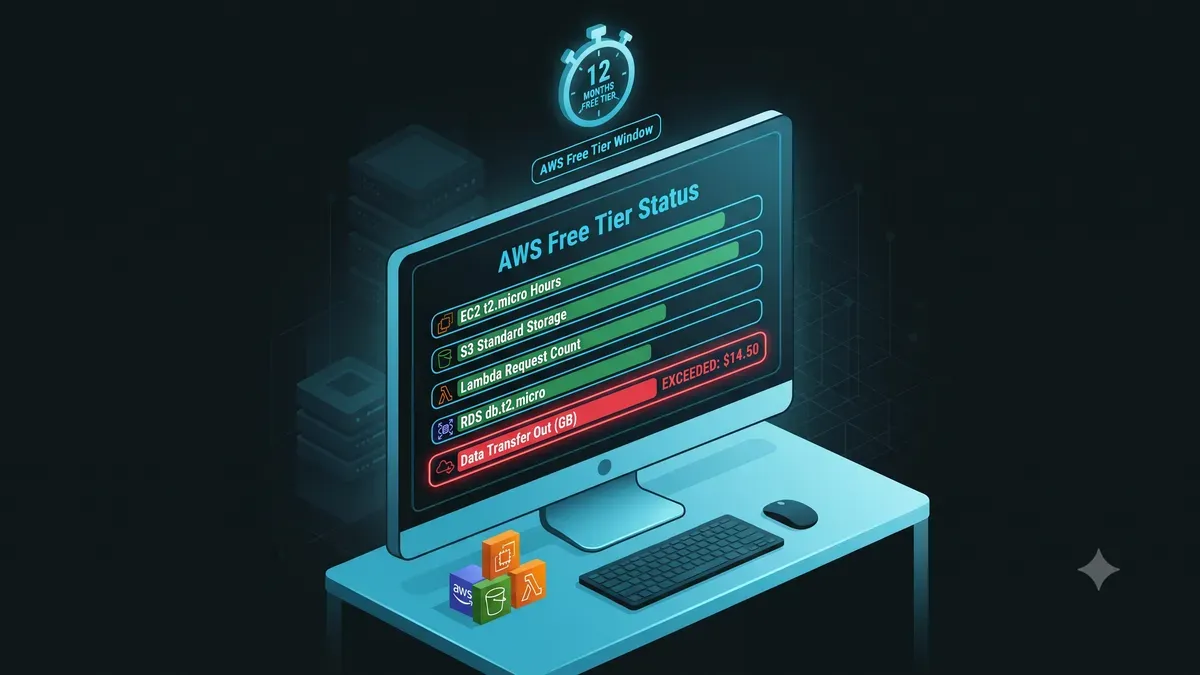
This is the direct answer to the question. Open the AWS console, go to Billing, and open the Free tier page from the left menu. It shows:
- Your free tier start date, the day the 12 month window began
- A breakdown of your usage per service against the monthly free limits
- Which services are approaching or exceeding their free allowance
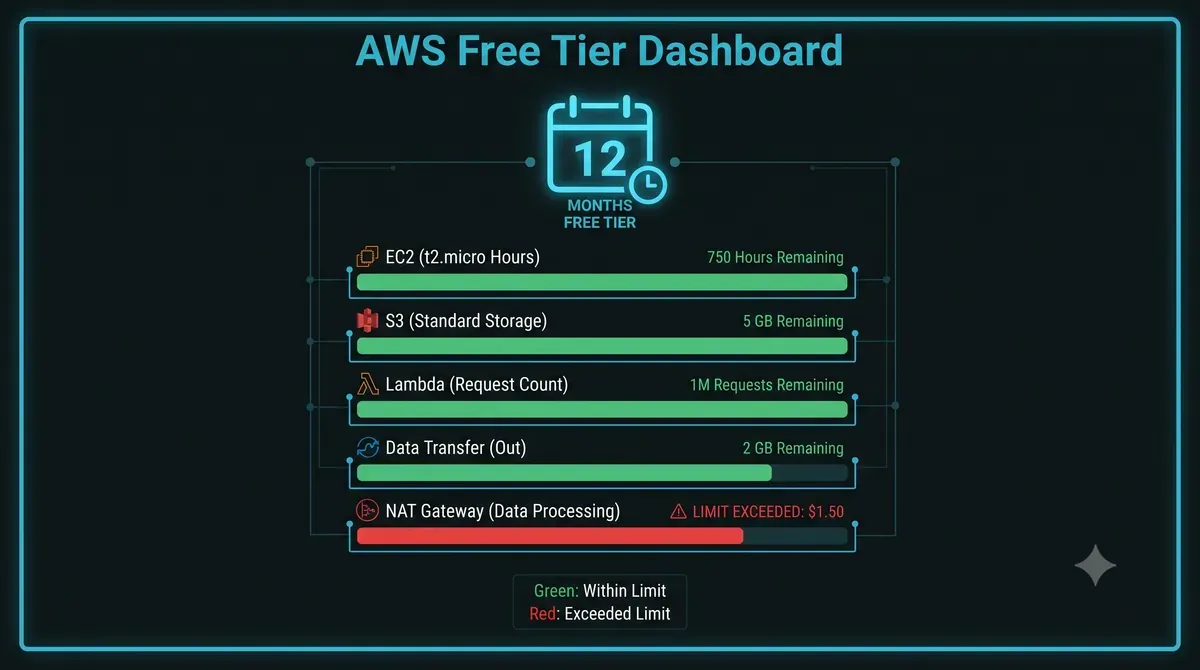
The page looks like a progress bar per service, with green for within limits and a warning color when you get close. If a service shows usage against a limit that expired, that is your warning sign.
The free tier usage alerts
AWS can email you when you approach a free tier limit, but only if you enable it.
- Go to Billing → Preferences
- Tick Receive Free Tier Usage Alerts
- Confirm your email address
From then on, AWS sends an alert when your usage hits a percentage of the free allowance. It is a five minute setup that answers the status question automatically, forever.
Cost Explorer
Cost Explorer shows spending history and is where the free tier numbers meet the billing reality. In Billing → Cost Explorer, filter by service and date range to see exactly which resources generate charges. It takes up to 24 hours for new data to appear after activation, so enable it early.
How to check with the CLI
If you prefer the terminal, the billing data is available through the AWS CLI. First make sure you have configured credentials.
aws ce get-cost-and-usage \
  --time-period Start=$(date +%Y-%m-01),End=$(date +%Y-%m-%d) \
  --granularity MONTHLY \
  --metrics "UnblendedCost" \
  --group-by Type=DIMENSION,Key=SERVICE
This returns a breakdown of costs per service for the current month. A free tier account in good standing shows mostly zeroes. Anything with a real number is either outside the free allowance or past its expiry.
To list your account’s AWS Organizations billing details, including the consolidated view if you use multiple accounts:
aws organizations describe-account \
  --account-id $(aws sts get-caller-identity --query Account --output text)
The CLI version is useful for the same reason the console is not. It gives you the raw numbers without the dashboard formatting hiding what you need to see.
What the numbers should look like
A healthy free tier account shows a specific pattern. Here is what to expect.
| Item | Free tier allowance | Healthy sign |
|---|---|---|
| EC2 micro instances | 750 hours/month for 12 months | Usage under 750, cost $0 |
| S3 standard storage | 5 GB for 12 months | Storage under 5 GB, cost $0 |
| Lambda requests | 1 million/month, always free | Cost $0 |
| Data transfer out | 100 GB/month, always free | Under 100 GB, cost $0 |
| NAT Gateway | Not included | Any cost = problem |
The last row is the one that ruins accounts. NAT Gateways, load balancers, and elastic IPs are not part of the free tier in most configurations. If your cost breakdown shows a number next to any of them, you are past the free limit or outside it entirely.
What happens after 12 months
The 12 month window ends on the anniversary of your account creation. After that, every service that was covered by the 12 months program starts billing at standard rates. The instance you launched for a tutorial and forgot is now a monthly charge.
The change is silent. Nothing pops up to say the free tier ended. The only signals are the free tier page showing expired limits and the budget alert emails, if you set them up.
If you created an account a long time ago and are not sure whether the window has passed, check the free tier page. The start date there is the definitive answer. If it shows you are outside the window, the safest move before creating anything new is to clean up what exists and decide whether you want to pay or switch to a provider with clearer free terms.
Staying safe after you check
Knowing your status is the first step. Keeping the bill at zero is the second, and it is a set of habits, not a one time fix.
- Create a budget alert in Billing → Budgets, set to a small amount like $5, with email notifications at 50%, 80%, and 100%. This catches everything the free tier alerts miss.
- Enable the free tier usage alerts described above.
- Check every region, not just your usual one. A forgotten instance in another region hides from a dashboard filter you never change.
- Clean up after every session. Terminate instances, delete snapshots, release elastic IPs. Make it the last step of your learning session.
- Recheck the free tier page monthly. Two minutes at the start of the month keeps the numbers honest.
The full anatomy of an $847 bill, including which services break the free tier and how to recover from AWS support, is in my AWS Free Tier billing trap case study. That story started exactly where this guide ends, at the moment somebody stopped checking. And if you are still mapping out your learning path, my cloud computing guide for beginners covers the full roadmap, providers, and first projects.
FAQ
Where is the free tier status in the AWS console? Billing → Free tier. It shows your start date, per service usage, and remaining allowance.
Do I get a notification when free tier expires? Not automatically. You only get alerts if you enable free tier usage alerts and budget alerts in Billing → Preferences and Billing → Budgets.
Does the 12 month clock start when I use my first service or when I sign up? When you sign up. An account that sits unused for six months still loses those six months of the window.
Is the always free tier affected by my account age? No. Always free services stay free regardless of how old the account is.
Can I see free tier status with the CLI? Partially. Cost Explorer via aws ce get-cost-and-usage shows spending per service, which reveals what is no longer free, while the free tier page shows the allowances themselves.
Closing
My friend checked the free tier page, found his account had three weeks left, cleaned up a forgotten instance in us-west-2, and set up both alerts. The panic turned into a routine.
The free tier is a gift with a clock on it. The clock is hidden, but it is always ticking. Checking your AWS free tier status takes two minutes, and those two minutes are cheaper than any bill the alternative produces.
I hope this AWS free tier status guide keeps your learning account at zero.
Implementation Checklist
- Replicate the steps in a controlled lab before production changes.
- Document configs, versions, and rollback steps.
- Set monitoring + alerts for the components you changed.
- Review access permissions and least-privilege policies.
Official References
Need a Hand?
If you want this implemented safely in production, I can help with assessment, execution, and hardening.
Contact MeDeploy on Cloud Infrastructure with $200 Free Credit
Spin up high-performance SSD cloud Droplets, managed Kubernetes, and databases in seconds. Test your containers and production workloads with $200 in free credits.
Transparency: We independently test and operate all recommended infrastructure. If you use our partner links, you receive free promotional credits and support our testing lab at zero extra cost to you.
Weekly Production DevOps Runbooks
Join 1,000+ infrastructure engineers receiving real-world Linux troubleshooting, Proxmox clustering setups, and Docker optimization runbooks every Tuesday. Zero spam, unsubscribe anytime.

About the Author
Kamandanu Wijaya
IT Infrastructure & Network Administrator
Infrastructure & network administrator with 15+ years of enterprise experience, focused on stability, security, and automation.
Certifications: Google IT Support, Cisco Networking Academy, DevOps.
Docker Production Guide: Containers, Compose and Volumes
next →Tailscale Mesh VPN: Architecture, CGNAT, and Setup
Need IT Solutions?
DoWithSudo is ready to help setup servers, VPS, and your security systems.
Contact Us