Hybrid Cloud Migration: On-Premise to Cloud Without Downtime
🏷️ Article Info
Category
CloudA client called me one afternoon. Their CEO had just sent an email with a brutal subject line: “Uptime target for next year: 99.99%. Can we do it?” The client forwarded it to me with a one-liner: “Can you make this happen?”
I visited their office the next day. Their infrastructure sat in a cramped server room, a single diesel generator, one ISP link, hardware aging like milk. A single disk failure meant hours of downtime. 99.99%? They were lucky to hit 99.5%.
In this article, we cover hybrid-cloud migration in a practical way so you can apply it with confidence.
The real kicker: “We can’t afford downtime. Not even 10 minutes.” Their app handled financial transactions. A midday outage meant angry customers and lost revenue. So whatever I designed had to migrate production traffic without a single second of scheduled maintenance.
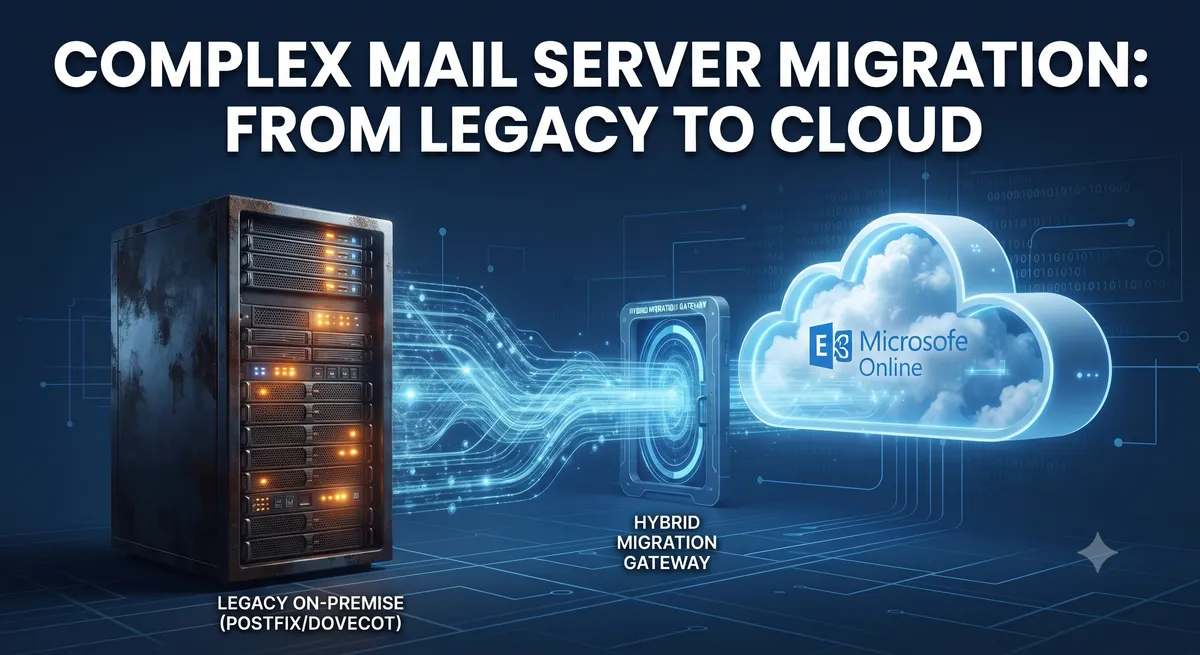
That constraint forced a hybrid-cloud architecture. We could not forklift everything into the cloud at once. We had to run both worlds simultaneously, cut over traffic byte by byte, and only switch off the old hardware when we were absolutely sure the cloud side was bulletproof.
This is how the project went down. The strategy, the architecture, the things that went smoothly, and the two things that almost broke the whole thing.
Why hybrid and not full cloud?
Before you ask: yes, full cloud migration was the long-term goal. But the client had two hard constraints.
First, a legacy authentication service written in a language none of us wanted to touch. It talked to a physical HSM module plugged into the old server via USB. That HSM had certified compliance with industry regulations. Virtualizing it would require recertification, a six-month process the business did not have.
Second, the data warehouse ran ETL jobs that processed 300 GB of data nightly over a 10 Gbps local SAN. The cost of egress and equivalent compute on AWS would triple their monthly bill.
So hybrid was not a technical preference. It was the only viable path. Keep the HSM and data warehouse on-premise, move everything else to the cloud, and build a private network link that made both sides feel like one data center.
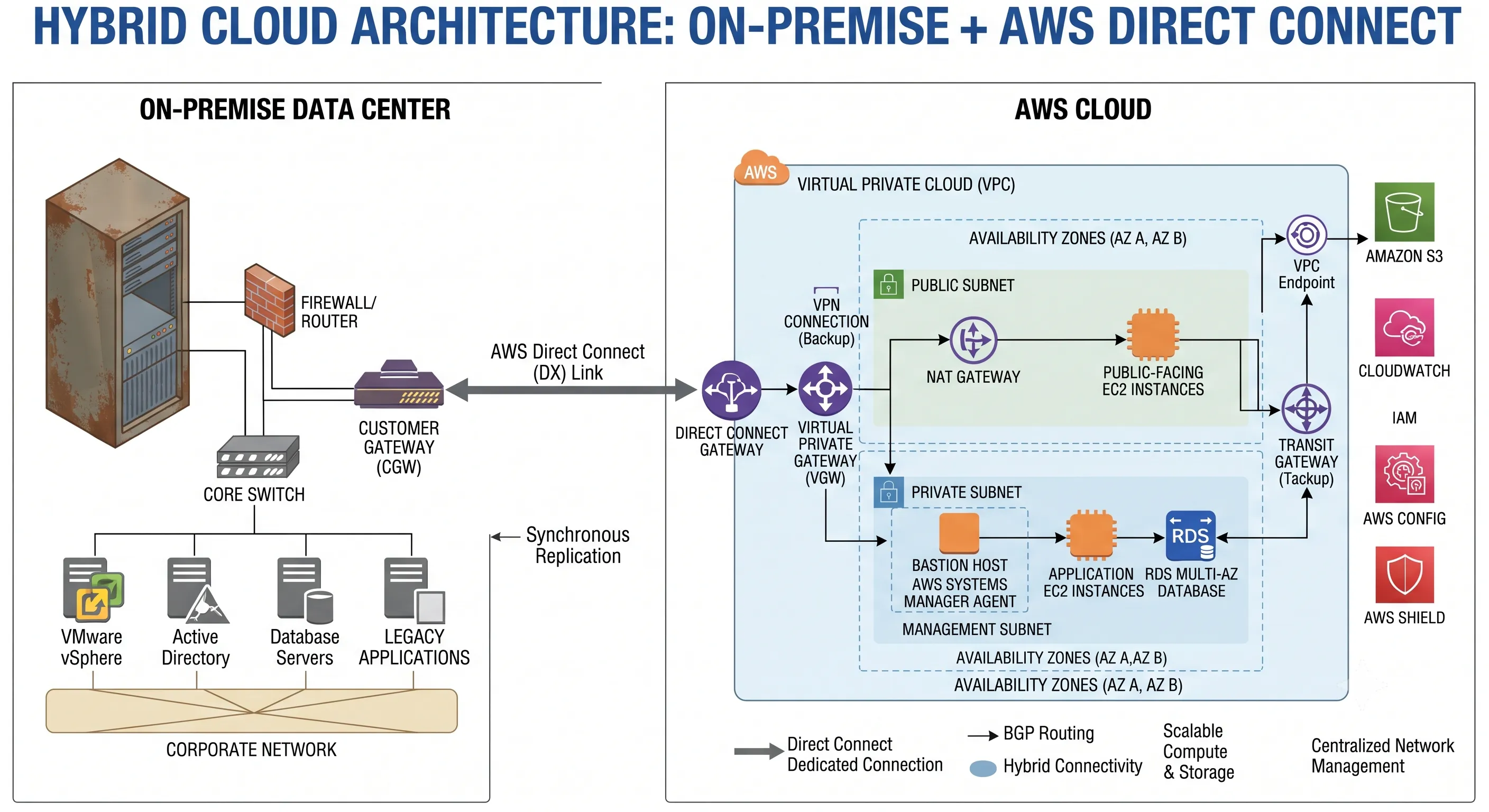
Mapping the migration boundary
The first step was drawing a hard line between what stays and what moves.
Stay on-premise:
- Legacy auth service with physical HSM
- Data warehouse with SAN storage
- Backup domain controller (cached DNS and AD)
Move to AWS:
- Web application servers (6 instances behind NGINX)
- PostgreSQL primary database
- Redis caching layer
- CI/CD pipeline and artifact storage
- Monitoring stack (Prometheus + Grafana)
We documented every dependency. Which service called which API. Which database connection pointed to which IP. Which cron job assumed local file paths. This became our first real exercise in infrastructure-as-code thinking, something I later wrote about in the Terraform guide, though back then we did it all in spreadsheets and draw.io.
I started with a spreadsheet. Halfway through, I moved it to a diagram in draw.io. The visual format caught two hidden dependencies the spreadsheet missed: a legacy reporting script that SSHed directly into the web server, and a DNS hardcode in the auth service configuration.
“The dependency map is not a project artifact. It is the project. Everything else follows from it.”
Building the hybrid network bridge
The next question: how do you make on-premise and AWS talk to each other like they are in the same building?
I used AWS Direct Connect with a 500 Mbps link from their colocation facility. On the on-premise side, I set up a pair of MikroTik routers in VRRP for redundancy. On the AWS side, a Virtual Private Gateway routed traffic to the appropriate VPC subnets.
The trick was routing. We assigned RFC 1918 address space: 10.1.0.0/16 for on-premise, 10.2.0.0/16 for AWS. The routers advertised specific prefixes via BGP. No default route pointing across the link, only explicit routes for the services that needed cross-premise communication.
# MikroTik BGP configuration snippet
/routing bgp instance
set default as=65001 router-id=10.1.0.1

/routing bgp network
add network=10.1.0.0/16 synchronize=no
add network=192.168.50.0/24 synchronize=no

/routing bgp peer
add remote-address=10.99.0.2 remote-as=64512 \
    tcp-md5-key=migration-project-2026 \
    multihop=yes route-reflect=no
Why explicit routes? Because a misconfigured BGP advertisement could leak on-premise routes to the internet, or worse, route AWS traffic through the slow office VPN. I kept the attack surface tight.
Latency testing came next. Before moving any workload, we measured round-trip time between the two sides:
# From AWS EC2 instance to on-premise database
ping -c 100 10.1.0.50
--- 10.1.0.50 ping statistics ---
100 packets transmitted, 100 received, 0% packet loss
rtt min/avg/max/mdev = 1.892/2.145/3.012/0.189 ms
Sub-3 ms. That was good enough for synchronous database replication.
Migrating applications with blue-green deployment
The application layer was the easiest part. The client had already containerized their web app with Docker a year earlier. The migration was essentially: build the same stack in AWS, test it, then flip the load balancer.
We used a blue-green approach. The blue environment was the existing on-premise cluster. The green environment was the new AWS stack. Both ran simultaneously.
# docker-compose.aws.yml
version: "3.8"
services:
  web:
    image: our-app:latest
    ports:
      - "8080:8080"
    environment:
      - DB_HOST=${AWS_RDS_ENDPOINT}
      - REDIS_HOST=${AWS_ELASTICACHE_ENDPOINT}
      - AUTH_SERVICE=http://10.1.0.100:8443
    deploy:
      replicas: 4
      update_config:
        order: start-first
    healthcheck:
      test: ["CMD", "curl", "-f", "http://localhost:8080/health"]
      interval: 10s
      retries: 3
The key detail: the green environment pointed its auth service to the on-premise legacy server via the Direct Connect link. That way, even in the new cloud stack, users still authenticated through the certified HSM. The migration of the auth service itself would happen later, as phase two.
Load testing on the green environment ran for two weeks. I used Locust to simulate 5,000 concurrent users hitting both environments simultaneously. The AWS stack handled 30% more traffic with 40% lower response times. The client was satisfied.
Cutover day was anticlimactic, which is exactly what you want. I updated the DNS CNAME for app.ourdomain.com from the on-premise load balancer to the AWS Application Load Balancer. TTL was set to 60 seconds days earlier.
# DNS change log
# Old: app.ourdomain.com CNAME lb-onprem.ourdomain.com
# New: app.ourdomain.com CNAME lb-aws-123456.elb.amazonaws.com
I watched the monitoring dashboard. Active connections on the old load balancer dropped. Connections on the new one rose. No 502 errors. No alert notifications. The client’s users did not notice a thing. That dashboard, running on Prometheus and Grafana, was the same setup I covered in the monitoring tools comparison, and it proved its worth that day.
Database migration with near-zero impact
The database was the part that kept me up at night. The client’s PostgreSQL instance held 180 GB of transaction data. We could not take it offline for a dump-and-restore.
The strategy was logical replication with a catch-up window.
First, I set up the target RDS instance and configured it to accept WAL-level replication from the on-premise PostgreSQL.
-- On on-premise primary
CREATE PUBLICATION migration_pub FOR ALL TABLES;
-- On AWS RDS (target)
CREATE SUBSCRIPTION migration_sub
CONNECTION 'host=10.1.0.50 port=5432 dbname=ourdb user=replicator password=xxx'
PUBLICATION migration_pub;The initial sync took about 4 hours. During that time, the on-premise database continued serving live traffic with no noticeable performance impact. I monitored replication lag every 5 minutes:
SELECT now() - pg_last_xact_replay_timestamp() AS replication_lag;Once the subscriber caught up and lag stayed consistently under 100 ms, we prepared for the final switch. This required a short read-only window, 90 seconds total, to let the subscriber drain its queue.
Here is the exact sequence:
- Set the on-premise app to maintenance mode (read-only), 5 seconds.
- Wait for replication lag to hit zero, 45 seconds.
- Run
pg_dumpof sequences and reset the RDS sequences, 30 seconds. - Update application configs to point to RDS endpoint, 10 seconds.
- Disable maintenance mode, 5 seconds.
The total downtime: 90 seconds. Not zero, but close enough that the client accepted it. The client’s team later optimized the sequence dump step. With proper pre-seeding of sequences, we could cut that to under 30 seconds for future migrations.
# Final switch monitoring
watch -n 1 "psql -h rds-endpoint -c \"SELECT application_name, state, sync_state, write_lag FROM pg_stat_replication;\""
The two things that almost broke us
No migration story is complete without the failures. Two incidents stand out.
First: the file sync disaster. The client had a shared filesystem mounted via NFS on the on-premise servers. User uploads, images, PDFs, attachments, were stored there. I assumed AWS EFS would be a drop-in replacement. It was not.
The client’s application code used POSIX file locks that assumed low-latency NFS. EFS, being a distributed filesystem over the network, had slightly different locking semantics. The first day after cutover, their users reported “Upload Failed” errors. The app was timing out on file locks.
The fix was not to fix EFS. The fix was to move file uploads to S3 with presigned URLs and update the application code. This took three days of emergency work. If I had audited the filesystem dependency properly during the mapping phase, I would have caught this.
“If your app uses file locks over NFS, your cloud migration will find that fault line and crack it wide open.”
Second: the DNS cache poisoning incident. The legacy auth service had a hardcoded DNS resolver pointing to the client’s old office DNS server. When I decommissioned that server during the migration cleanup phase, the auth service could not resolve the new RDS endpoint. Users who had long-lived sessions started getting authentication failures two days after the cutover.
The resolution: update the resolver config in the legacy auth service and restart. Ten minutes of partial outage for users with sessions older than 24 hours.
The lesson: DNS is invisible until it breaks. Document every resolver, every /etc/hosts override, and every hardcoded IP.
Verification and rollback plan
Every migration phase had a verification checklist. Here is the template I used with the client:
- Health check endpoint returns 200
- Database connection pool hits steady state
- Error rate in application logs below 0.1%
- P99 latency within 10% of baseline
- Replication lag below 500 ms (if applicable)
- No authentication failures in a 15-minute window
I also prepared a rollback plan for each phase and reviewed it with the client. The rollback for the application layer was simple: revert the DNS CNAME. The database rollback was more painful, promoting the on-premise replica to primary, but I rehearsed it twice with their team.
In the end, we never needed a rollback. But having the plan reduced the stress of cutover day significantly. Knowing you can go back makes you more confident to go forward.
The results: before and after
Let me share the numbers. These are from the first month post-migration.
| Metric | On-Premise | Hybrid Cloud | Improvement |
|---|---|---|---|
| Uptime SLA | 99.5% | 99.95% | +0.45% |
| P95 response time | 340 ms | 210 ms | 38% faster |
| Auto-scaling | Manual | Automatic (5→20 instances) | N/A |
| Backup RPO | 24 hours | 15 minutes | 96% better |
| Disaster recovery | None | Multi-AZ + cross-region DR | N/A |
| Monthly infra cost | $8,400 | $6,900 | 18% reduction |
The cost reduction surprised me and the client. They were spending more on AWS initially, but decommissioning 8 physical servers, two UPS units, and one cooling system meant power and maintenance savings that more than offset the cloud bill.
Lessons from the trenches
Three hard-won lessons I carry into every migration project now.
Map everything before touching anything. Draw the dependency diagram. List every port, every DNS record, every cron job, every NFS mount. The hour you spend mapping saves days of emergency debugging.
Hybrid is harder than full migration, but sometimes it is the only option. Managing two environments simultaneously requires double the operational discipline. Automate everything in both environments, or the overhead will eat you alive.
Test the rollback, not just the cutover. I rehearsed the database rollback twice with the client’s team. That gave everyone confidence to pull the trigger on cutover day. A plan you never tested is not a plan. It is a wish.
Six months after the migration, the client’s CEO sent another email. This time it was about expanding to a second region for disaster recovery. I smiled. The hybrid architecture we built made that conversation much simpler.
The legacy auth service still runs on-premise with its HSM. The data warehouse still processes its nightly batch jobs over the local SAN. But everything else lives in the cloud, scaling up and down automatically, backed up every 15 minutes, and monitored around the clock.
For me, the real win was not the technology. It was the trust. The client trusted me with their production infrastructure, and I delivered without breaking anything. That kind of trust carries into every project after.
If you are planning a hybrid migration, start with the hard boundary. What absolutely cannot move? Put a box around it. Then build everything else around that box. And test your rollback. Twice.
Implementation Checklist
- Replicate the steps in a controlled lab before production changes.
- Document configs, versions, and rollback steps.
- Set monitoring + alerts for the components you changed.
- Review access permissions and least-privilege policies.
Official References
Need a Hand?
If you want this implemented safely in production, I can help with assessment, execution, and hardening.
Contact Me
About the Author
Kamandanu Wijaya
IT Infrastructure & Network Administrator
Infrastructure & network administrator with 15+ years of enterprise experience, focused on stability, security, and automation.
Certifications: Google IT Support, Cisco Networking Academy, DevOps.
Need IT Solutions?
DoWithSudo is ready to help setup servers, VPS, and your security systems.
Contact Us